Discover Your Screen Resolution Instantly
Your current screen resolution is: Loading…
If you’ve ever asked yourself “What is my screen resolution?” or “What resolution is my monitor?”, you’re in the right place. I built this tool on whatismyscreenresolution.site because I kept needing a fast way to check my own monitor resolution while testing websites, display settings, and responsive layouts.
Instead of opening system settings every time, this page instantly detects your screen resolution, screen size in pixels, aspect ratio, and device pixel ratio directly in your browser. It works without downloads, extensions, or account signups, and all detection happens locally on your device.
Many visitors land here because they want a simple answer to questions like what is my screen size in pixels, how many pixels is my screen, or how to check screen resolution on a laptop, desktop, or phone. That’s exactly what this page is designed to do.
I regularly test this checker on Windows PCs, MacBooks, Android phones, and iPhones to make sure it works reliably across Chrome, Edge, Firefox, and Safari.
Why Users Should Care
Knowing your screen resolution is useful for more than curiosity. It can help you fix blurry text, choose the right monitor, compare laptops, improve gaming or streaming quality, and make sure websites or apps scale properly on your display. In my own testing, it’s one of the fastest ways to troubleshoot display problems before digging into deeper settings.
What Is My Screen Resolution? (Quick Answer)
Screen resolution is the number of pixels your display shows horizontally and vertically, written as width × height (for example, 1920 × 1080). Higher resolutions contain more pixels, which usually means sharper text, clearer images, and more usable screen space.
How This Screen Resolution Checker Works
The tool above automatically detects your current display settings using your browser. In one place, it shows your screen resolution, screen size in pixels, aspect ratio, and device pixel ratio (DPR). Everything runs locally in your browser, which means your screen data is not stored, logged, or transmitted.
How to Check Screen Resolution on Windows, Mac, and Phones
If the automatic checker above doesn’t load, you can still check your screen resolution manually on your device.
How to Check Screen Resolution on Windows
- Right-click on your desktop.
- Click Display settings.
- Look for Display resolution under the display section.
How to Check Screen Resolution on macOS
- Click the Apple menu.
- Select System Settings.
- Choose Displays.
- View or adjust the Resolution setting.
How to Check Screen Resolution on Smartphones
- Open Settings.
- Tap Display.
- Look for Screen Resolution, Display Size, or related display settings.
These steps are useful if you’re troubleshooting a display issue, checking a second device, or simply want to confirm what your screen is set to manually.
Why Does Your Screen Resolution Matter?
Screen resolution affects how sharp text looks, how detailed images appear, and how much usable space you have on screen. If you’re gaming, it changes both image quality and performance. If you design websites or edit photos, it affects layout accuracy and visual detail. Even for everyday browsing, the difference between a lower resolution and a sharper display is easy to notice once you compare them side by side.
Many users also ask, “What resolution is my monitor?” A monitor’s resolution simply refers to the pixel dimensions your display hardware supports, ideally at its native screen resolution for the best clarity.
Common Screen Resolutions by Device
Screen resolution varies by device type, screen size, and hardware.
Desktop monitors most commonly use 1920 × 1080 (Full HD), 2560 × 1440 (QHD), or 3840 × 2160 (4K).
Laptops often use 1366 × 768, 1920 × 1080, or 2560 × 1600.
Smartphones usually range from around 1080 × 2400 to 1440 × 3200, depending on the model.
A higher resolution packs more pixels into the display, which usually means sharper text, better image detail, and more room for multitasking.
Real Example: When I Check My Screen Resolution
When I upgraded my workspace recently, I checked my laptop with this tool first. It was running at 1920 × 1080, which is standard Full HD.
Then I connected a 2560 × 1440 external monitor. The difference was immediate. I had noticeably more room for coding, writing, and keeping multiple browser windows open side by side. That’s exactly why knowing your screen resolution matters in real-world use — it directly affects how comfortable and productive your setup feels.
Read the latest articles and news on Whatismyscreenresolution Blog.
Understanding Screen Resolution and Display Resolution
At its core, screen resolution describes the total number of pixels your display uses to form an image. Those pixels are arranged in a grid across the screen, and the more pixels you have, the more detail your display can show.
You’ll also see the term display resolution used in a similar way. In most everyday cases, screen resolution and display resolution mean the same thing: the width and height of your screen in pixels.
What Is My Screen Size in Pixels?
Many people searching “what is my screen size in pixels” are actually asking about their screen resolution.
Your screen size in pixels is simply the pixel width and height of your display. For example:
- 1920 × 1080 means your screen is 1920 pixels wide and 1080 pixels tall
- 2560 × 1440 means your screen is 2560 pixels wide and 1440 pixels tall
That pixel grid is what your screen uses to render text, images, videos, and apps. The checker at the top of this page automatically detects that for you.
If you’re comparing pixel dimensions with physical size, it also helps to know how to measure monitor size correctly before evaluating different displays.
Screen Resolution vs Screen Size
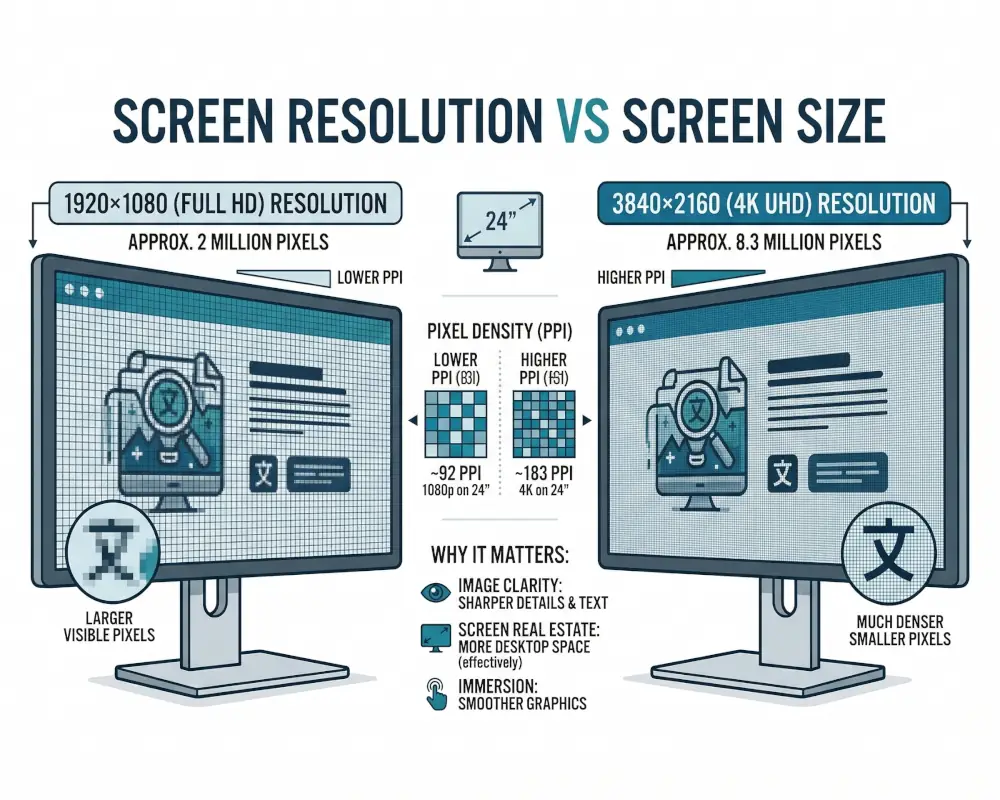
Screen resolution and screen size are often confused, but they describe two different things.
| Term | What It Means |
| Screen resolution | The number of pixels on the display, written as width × height (example: 1920 × 1080) |
| Screen size | The physical diagonal size of the display, usually measured in inches (example: 24-inch monitor) |
For example, two monitors can both be 24 inches, but one may be 1920 × 1080 while the other is 3840 × 2160 (4K). The 4K model will look much sharper because it packs far more pixels into the same physical space.
Native Resolution, Scaled Resolution, and PPI
A display looks best at its native resolution, which is the exact number of physical pixels built into the panel. If software scaling is applied, content can appear larger, but sometimes slightly softer.
Another useful term is PPI (pixels per inch), which measures pixel density. Higher PPI usually means sharper text and smoother edges, especially on smaller screens like phones and tablets.
The basic PPI formula is:
PPI = √(width² + height²) ÷ screen size
Standard Display Resolutions: From HD to 8K
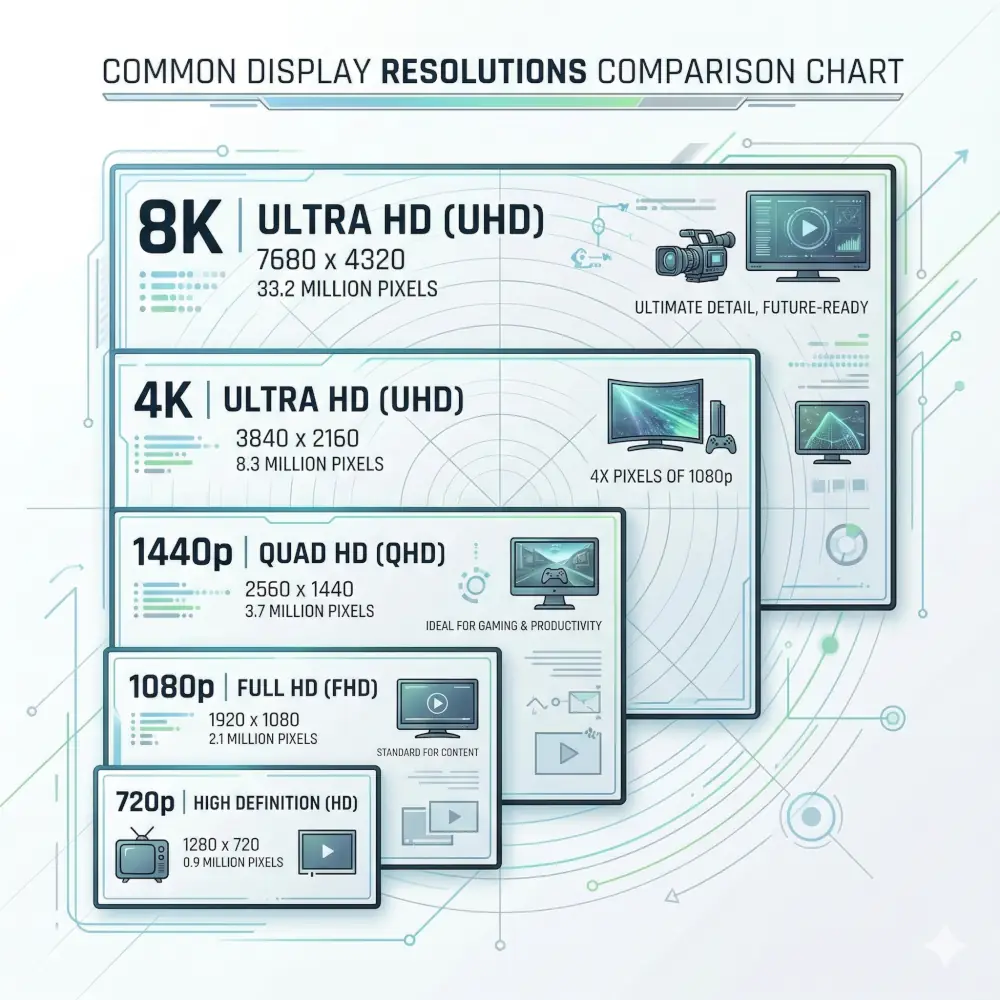
Display resolutions have steadily increased as screens have become larger and content has become more detailed. If you want a deeper side-by-side comparison, you can also see how HD vs 2K vs 4K differs in pixel count and real-world clarity.
| Resolution Name | Dimensions | Total Pixels | Common Applications | Aspect Ratio |
| HD (720p) | 1280 × 720 | 921,600 | Entry-level laptops, budget monitors, small TVs | 16:9 |
| Full HD (1080p) | 1920 × 1080 | 2,073,600 | Mainstream monitors, gaming, streaming content | 16:9 |
| 2K / QHD (1440p) | 2560 × 1440 | 3,686,400 | Gaming monitors, productivity, premium displays | 16:9 |
| 4K Ultra HD | 3840 × 2160 | 8,294,400 | High-end TVs, professional monitors, content creation | 16:9 |
| 5K | 5120 × 2880 | 14,745,600 | Professional design, high-density displays | 16:9 |
| UltraWide QHD | 3440 × 1440 | 4,953,600 | Multitasking, immersive gaming, cinematic content | 21:9 |
| 8K Ultra HD | 7680 × 4320 | 33,177,600 | Premium TVs, specialized professional use | 16:9 |
Many users also wonder where 2K actually fits. If that term has ever seemed inconsistent, here’s a clearer explanation of what 2K resolution actually means.
Over time, the most common consumer standard shifted from older low-resolution displays to HD, then Full HD, and now increasingly to QHD and 4K. If you’re specifically comparing older and newer mainstream standards, this breakdown of HD vs FHD is also helpful.
Some users also look at ultrawide displays such as 3440 × 1440 for multitasking or immersive gaming. If you’ve seen both terms used interchangeably, our guide on WQHD vs QHD explains whether they’re actually the same.
Aspect Ratios: The Shape of Your Display
While resolution tells you how many pixels your display has, aspect ratio describes the relationship between width and height. It affects how content is framed, how much horizontal or vertical space you get, and whether video content fits naturally on your screen.
| Aspect Ratio | Common Resolutions | Common Use Cases |
| 4:3 | 1024 × 768, 1600 × 1200 | Older displays, some tablets |
| 16:10 | 1920 × 1200, 2560 × 1600 | Productivity-focused laptops and monitors |
| 16:9 | 1920 × 1080, 3840 × 2160 | Most modern monitors, TVs, laptops |
| 21:9 | 2560 × 1080, 3440 × 1440 | Ultrawide gaming, video editing, multitasking |
A mismatched aspect ratio can cause black bars, stretching, or cropping. That’s why a 4:3 video often shows side bars on a 16:9 display. If you want to compare screen shapes more closely, try your Screen Aspect Ratio Calculator or use the checker above alongside it.
Resolution Isn’t the Only Factor in Image Quality
Resolution matters a lot, but it isn’t the only thing that affects how sharp or impressive a display looks. Color depth, contrast, HDR, and the display technology itself can all change how clear and vibrant the screen appears in real use.
For example, a 4K screen with weak contrast can still look less impressive than a lower-resolution panel with better dynamic range and stronger color performance. If you want to compare these concepts more clearly, it helps to understand HD vs HDR, HDR vs SDR, and HDR vs OLED depending on what you’re shopping for.
Device Pixel Ratio and Display Scaling
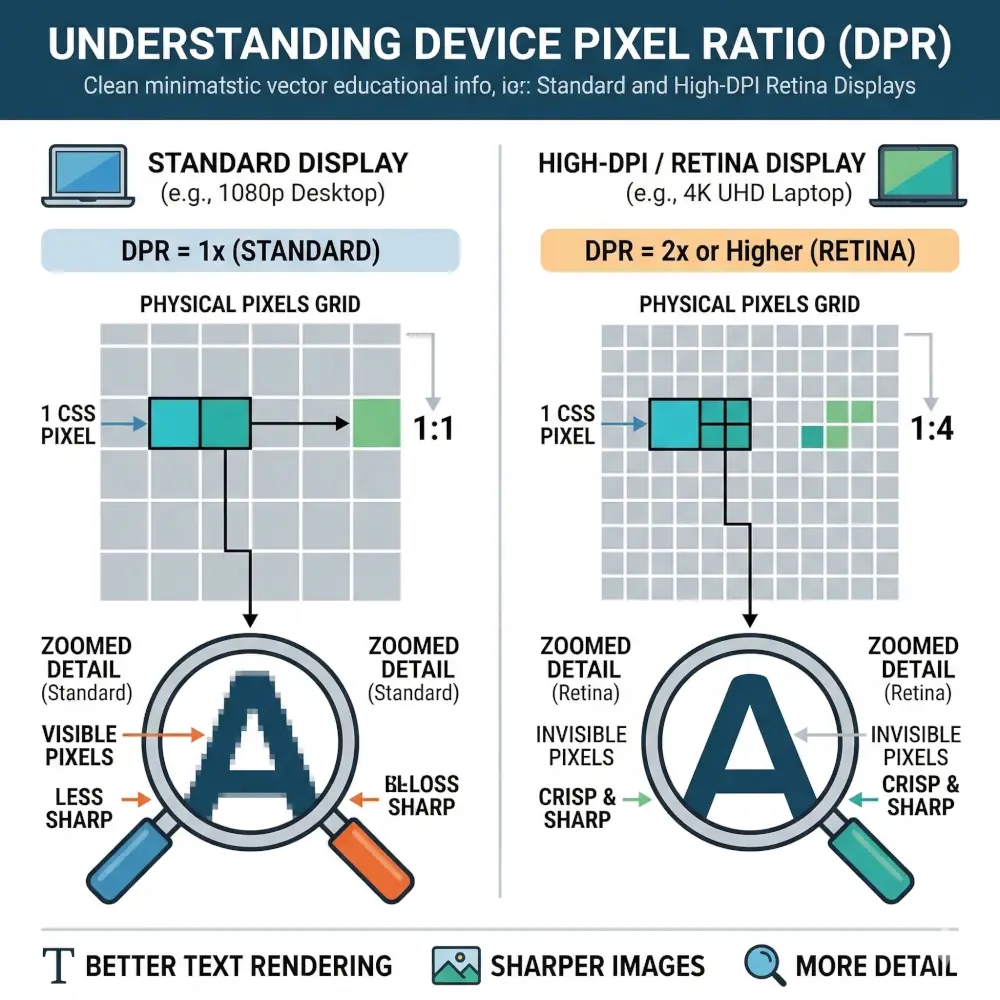
In today’s multi-device world, a concept called Device Pixel Ratio (DPR) has become crucial. Also known as pixel density or scaling factor, DPR explains why a high-resolution smartphone display might report a lower logical resolution than its physical pixel count.
In today’s multi-device world, Device Pixel Ratio (DPR) is one of the most important concepts behind why a phone or laptop can look extremely sharp even when software reports a lower “logical” resolution.
DPR is the ratio between physical pixels and logical pixels. For example, a phone with a very high-resolution panel may use multiple physical pixels to render a single CSS pixel. That keeps text readable while still making the display look crisp.
This is why some phones seem to show a lower reported resolution than you expect. The physical panel may be very dense, but the operating system scales the interface for usability. If you want to see how your own device handles scaling, try the Device Pixel Ratio Tester on your site.
How to Choose the Right Screen Resolution
The best screen resolution depends on how you actually use your device.
For most people, 1920 × 1080 (Full HD) is still perfectly fine for everyday work, web browsing, and video. 2560 × 1440 (QHD) is a strong upgrade for productivity and gaming because it adds noticeably more space without being as demanding as 4K. 3840 × 2160 (4K) makes the most sense on larger screens, for creative work, or when you want the sharpest possible detail.
Screen size matters here too. A 24-inch 1080p monitor and a 24-inch 4K monitor can feel very different because the pixel density changes dramatically. If you’re choosing between higher-end options, this comparison of QHD vs 4K is worth reading before you buy.
Also Read: Display Resolution Explained (720p, 1080p, 1440p, 2K, 4K, 5K, 8K)
Visual Guide: Common Screen Resolutions
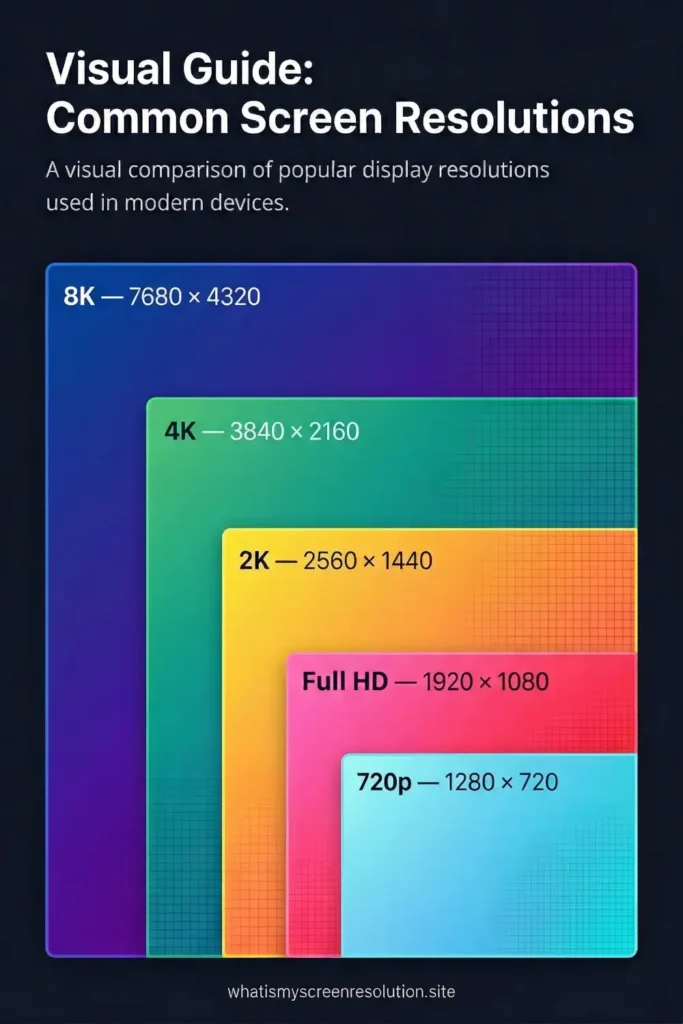
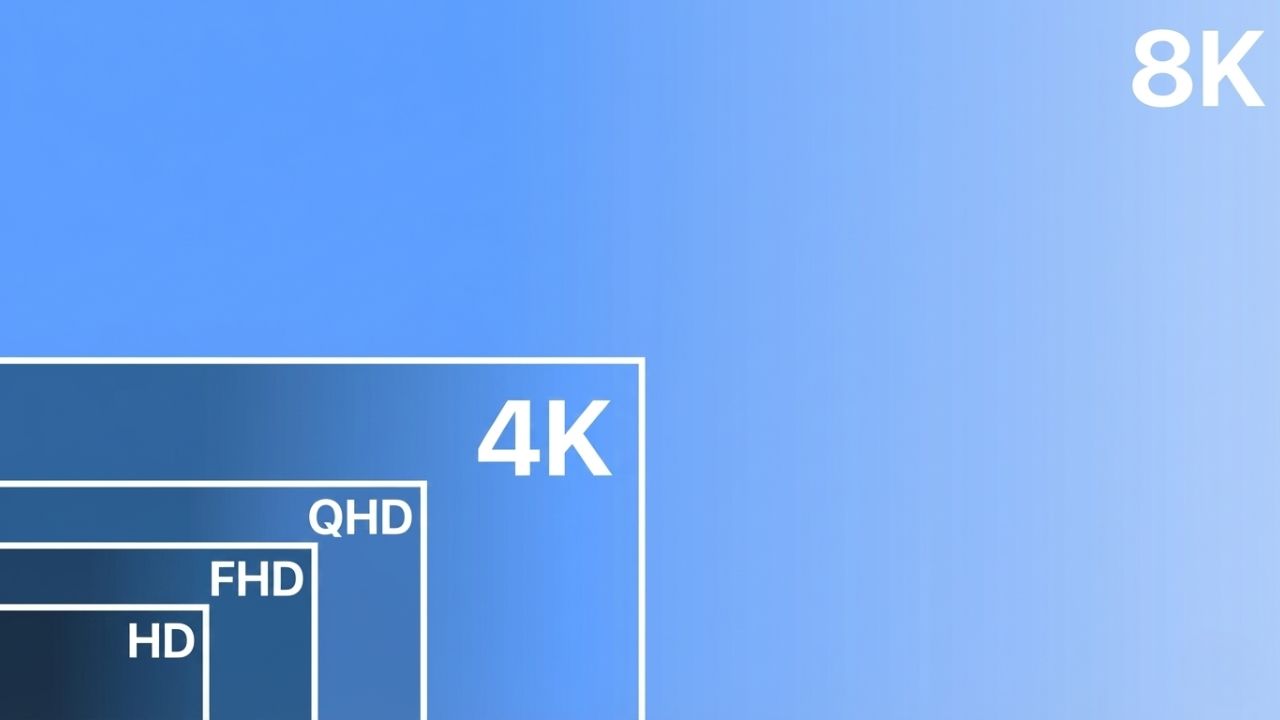
A visual size comparison makes it much easier to understand how quickly pixel count increases as you move from 720p to 1080p, 1440p, 4K, and eventually 8K. Even when two screens look similar at a glance, the difference in total pixel count can be dramatic.
Conclusion
If you came here asking “What is my screen resolution?”, the tool at the top of this page gives you the fastest answer.
It instantly detects your display resolution, screen size in pixels, aspect ratio, and device pixel ratio directly in your browser. No downloads. No extensions. No unnecessary setup.
Once you know those numbers, it becomes much easier to troubleshoot blurry text, compare monitors, choose the right resolution for work or gaming, and understand how your display will actually look in daily use.
Using a browser-based screen resolution checker like this is the simplest way to instantly check what your screen is using right now.
Related Screen Resolution Guides
- Display Resolution Explained
- What Is 2K Resolution
- QHD vs 4K
- HD vs FHD
- How to Measure Monitor Size
- HDR vs OLED