How to measure monitor size correctly matters more than most people expect, especially if you’ve ever bought a monitor arm, privacy filter, replacement panel, or even a simple screen protector. I built whatismyscreenresolution.site because I kept seeing people confuse screen size with screen resolution, and this topic comes up more often than most people expect.
A lot of users assume their monitor is “about 24 inches” or “probably 27 inches,” but when it’s time to buy something that needs an exact fit, guessing doesn’t work. I’ve seen the same issue with desktop monitors, laptops, ultrawides, and even curved displays. The most common mistake is measuring the outer frame instead of the actual visible screen area.
The good news is that measuring monitor size is simple once you know the correct method. You don’t need special tools, and you don’t need a technical background. In most cases, a soft measuring tape is enough. If the monitor is mounted or hard to reach, there’s also a reliable backup method using width and height.
In this guide, I’ll show you the correct way to measure a monitor, explain what counts (and what doesn’t), and clear up the confusion between physical screen size and resolution so you can make smarter buying decisions.
Also Read: Whatismyscreenresolution Blog
Quick Answer: How Do You Measure Monitor Size?
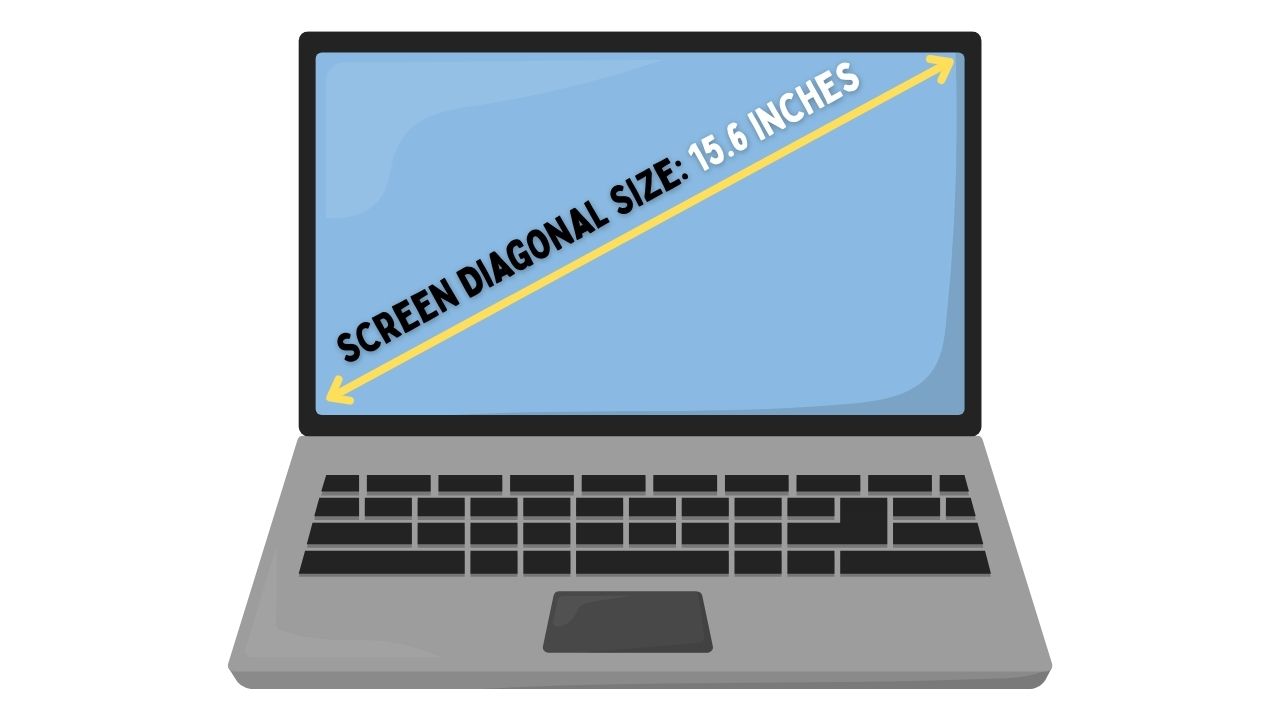
To measure monitor size correctly, measure the diagonal length of the visible display area only, from the bottom-left corner to the top-right corner. Do not include the bezel or outer frame. The result in inches is the official monitor size. If needed, you can also calculate it using screen width and height.
What Does Monitor Size Really Mean?
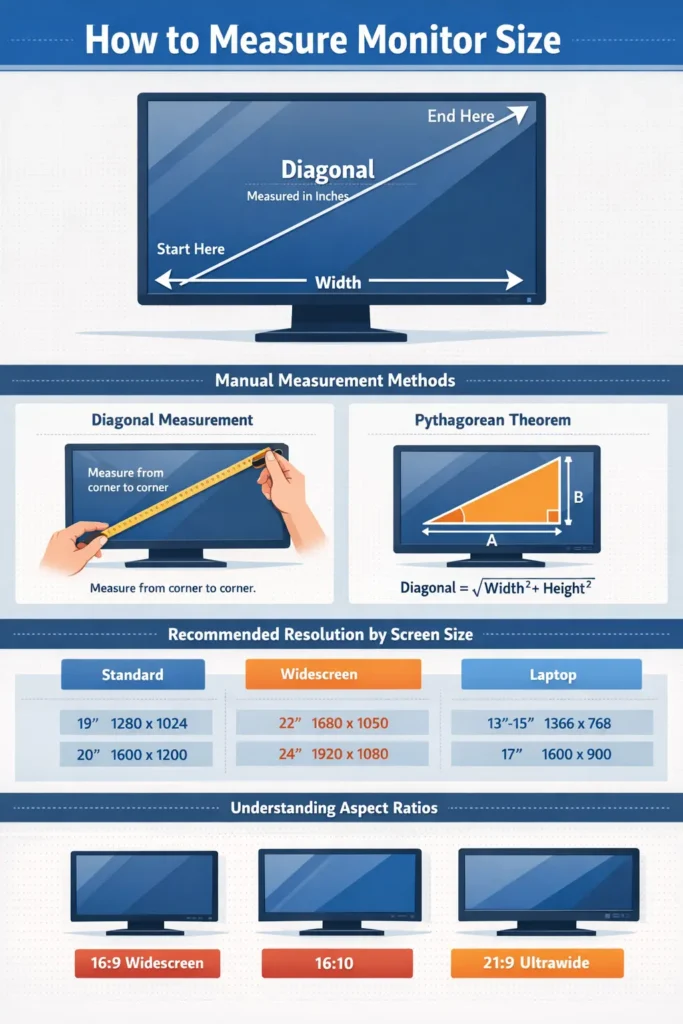
When manufacturers list a monitor as 24-inch, 27-inch, or 32-inch, they’re referring to the diagonal measurement of the active display area — not the full body of the monitor.
That means the plastic or metal frame around the screen, commonly called the bezel, is not part of the official size.
This is the same standard used for desktop monitors, laptop screens, TVs, ultrawide displays, and curved monitors.
So, if you’re measuring your screen for accessories or compatibility, the only part that matters is the area where the image actually appears.
Why Monitor Size Is Measured Diagonally
This is where many people get tripped up.
Monitor size is not measured by width alone because screens come in different shapes. A 24-inch standard widescreen display and a 24-inch display with a different aspect ratio can have noticeably different width and height. Using the diagonal gives manufacturers one standard way to classify all screens.
That’s why every product box, spec sheet, and accessory listing uses the diagonal measurement.
If you measure only the width, you’ll get the wrong answer. If you include the bezel, you’ll also get the wrong answer. And if you’re buying a privacy filter or replacement screen, that small mistake can become an expensive one.
Method 1: How to Measure Monitor Size Manually (The Standard Method)
This is the most accurate and most common method. It’s also the one manufacturers use when describing a monitor’s official size.
What You Need
A soft measuring tape is best because it’s flexible and easy to position across the screen. A ruler can work too, but it’s less convenient on larger displays.
How to Measure It Correctly
Start by turning off the monitor if possible. This makes it easier to see where the visible screen begins and where the bezel ends.
Place the start of the measuring tape at the bottom-left corner of the visible display area. Make sure you are not starting from the outer frame.
Then stretch the tape diagonally across the screen to the top-right corner of the visible display area. Again, the bezel should be ignored completely.
Read the measurement in inches. That number is your monitor’s official size.
For example, if the visible diagonal measures about 23.8 inches, the monitor is usually marketed as a 24-inch monitor. If it measures around 31.5 inches, it’s typically sold as a 32-inch monitor.
A Small Tip That Helps
If you only have a straight ruler and the screen is too large, you can use a piece of string. Lay the string diagonally across the visible screen, mark the length, and then measure the string afterward.
It’s simple, but it works surprisingly well.
Method 2: Measure Using Width and Height (If You Can’t Reach the Diagonal)
Sometimes the diagonal is hard to measure directly. This happens with wall-mounted monitors, dual-screen setups, or tight desk spaces.
In that case, you can still find the correct monitor size by measuring the visible width and height of the screen and then using the Pythagorean theorem.
The Formula
Diagonal = √(width² + height²)
This gives you the same diagonal measurement used to classify monitor size.
Real Example
Let’s say the visible screen area measures:
- Width = 20 inches
- Height = 11.25 inches
Now calculate:
- 20² = 400
- 11.25² = 126.56
- 400 + 126.56 = 526.56
- √526.56 = 22.95
So the screen’s actual diagonal is about 22.95 inches, which means it’s sold as a 23-inch class monitor.
This method is especially useful when the corners of the screen are hard to access, or when you want to double-check a manual measurement.
Method 3: Check the Manufacturer’s Specifications
If you don’t want to measure the monitor physically, the easiest alternative is to check the manufacturer’s specs.
This is often the fastest option for wall-mounted monitors, office monitors that are hard to move, laptops, curved ultrawide displays, and monitors already installed in multi-screen setups.
Look for the model number on the back of the monitor, on the stand, or in the monitor’s on-screen menu. Once you have the model number, search it on the manufacturer’s official website.
The listed screen size will be the official diagonal measurement.
For laptops, the same rule applies. If you know the exact model — for example, a Dell XPS 15 or HP Pavilion 14 — the screen size is easy to confirm from the manufacturer’s product page.
How to Check Monitor Size Without Measuring
If you can’t access the screen easily, checking the model number is usually the best method. But there’s another useful shortcut.
If you already know the exact monitor model, you can often find the size in the original product box, your order history on Amazon or another retailer, the manufacturer’s support page, or the monitor’s settings menu on some models.
In my experience, this is often more reliable than trying to measure a tightly mounted monitor, especially with ultrawides or curved displays where physical access is awkward.
Common Mistakes When Measuring Monitor Size
Most measurement errors come from a few simple misunderstandings.
The biggest one is measuring the outer frame instead of the visible screen. This is extremely common, especially with thin-bezel monitors where the border looks smaller than it actually is.
Another mistake is measuring the width only and assuming that number equals the monitor size. It doesn’t. Monitor size is always diagonal.
I also see people round too aggressively. If a monitor measures 23.8 inches, that doesn’t mean your tape is wrong. It usually means the monitor is sold as a 24-inch class display, which is completely normal.
Curved monitors can also create confusion. You should still measure straight across the diagonal of the visible screen area, not by wrapping the tape along the curve itself.
These details seem small, but they matter a lot when you’re buying accessories that need a precise fit.
What If Your Measurement Doesn’t Match the Box?
This is normal, and it surprises a lot of people.
A monitor sold as 24-inch often measures around 23.8 inches. A monitor sold as 32-inch may measure around 31.5 inches. Manufacturers usually market displays by class size, not exact decimal size.
So if your measurement is slightly smaller than the number on the product page, that usually doesn’t mean you made a mistake.
If your result is off by more than about half an inch, check three things.
First, make sure you measured only the visible display area.
Second, confirm that the tape followed a true diagonal path.
Third, make sure you read the result in inches, not centimeters.
A quick recheck solves most mismatches.
Monitor Size vs Screen Resolution: They’re Not the Same Thing
This is one of the biggest reasons I created whatismyscreenresolution.site in the first place.
A lot of people know their screen “looks sharp” or “looks normal,” but they don’t realize that screen size and resolution are two completely different things.
If you want the technical background, display resolution simply refers to the number of distinct pixels shown on a screen.
Monitor size is the physical diagonal measurement of the screen in inches.
Resolution is the number of pixels displayed on the screen, such as:
- 1920 × 1080 (Full HD / 1080p)
- 2560 × 1440 (QHD / 1440p)
- 3840 × 2160 (4K)
A larger screen does not automatically mean a higher resolution. And a higher resolution does not automatically mean a larger screen.
You can have a 24-inch 1080p monitor, a 24-inch 1440p monitor, a 27-inch 1080p monitor, or a 27-inch 4K monitor. All of these are possible, and they can look very different in everyday use.
Why Resolution Feels Different on Different Monitor Sizes
This is where pixel density matters.
Pixel density is usually measured in PPI (pixels per inch). It tells you how tightly the pixels are packed into the screen.
If two monitors have the same resolution but different physical sizes, the smaller one usually looks sharper because the pixels are packed more closely together.
I see this confusion constantly when people compare monitors.
A 24-inch 1080p monitor usually looks fairly sharp at a normal desk distance. It’s a common sweet spot for basic work and casual use.
A 32-inch 1080p monitor, on the other hand, spreads the same number of pixels over a much larger surface. That usually results in a softer image, especially if you sit close to the screen.
Here’s the practical difference:
| Monitor Size | Resolution | Approx. PPI | How It Usually Feels |
| 24-inch | 1920×1080 | ~92 PPI | Sharp enough for most users |
| 27-inch | 1920×1080 | ~82 PPI | Acceptable, but softer up close |
| 32-inch | 1920×1080 | ~69 PPI | Often noticeably less sharp |
| 27-inch | 2560×1440 | ~109 PPI | Clearer and more refined |
| 32-inch | 3840×2160 | ~138 PPI | Very sharp for productivity and media |
This is why size and resolution should always be considered together, not separately.
A Real-World Example
Let’s say you’re buying a privacy filter for a monitor you believe is “24 inches.”
If you measure the full outer frame, you might get something closer to 25.5 inches and order the wrong size. Then the filter arrives, doesn’t fit, and you assume the product listing was wrong.
But the real issue is that the official size is based only on the visible display area.
The same thing happens with monitor arms, blue-light filter panels, replacement LCDs, and even desk setup planning. I’ve seen this mistake often enough that it’s one of the easiest problems to prevent: just measure the visible screen diagonally and ignore everything else.
My Honest Recommendation
If you just want the most accurate answer quickly, use a soft measuring tape and measure the visible screen diagonally. That’s still the best method for most people.
If the monitor is hard to access, use the width-and-height formula or look up the manufacturer’s model number.
And if you’re comparing monitors for buying decisions, don’t stop at size alone. Check the resolution too. A 27-inch display can feel great at 1440p and underwhelming at 1080p, depending on how close you sit and what you use it for.
That’s the part many buyers miss.
Also Read:
Conclusion
How to measure monitor size correctly is simple once you know the rule: measure the visible display area diagonally in inches.
Not the bezel.
Not the full frame.
Not the width alone.
That one detail prevents most mistakes.
If you can’t measure the diagonal directly, the width-and-height method works well. And if you already know the model number, the manufacturer’s specs are often the fastest route.
Once you know your actual monitor size, pair that with your screen resolution and you’ll make much better decisions when buying accessories, comparing displays, or planning your desk setup.