I built WhatIsMyScreenResolution.site because I kept seeing the same question pop up over and over: Local Dimming On or Off — which setting is actually better? Most TVs ship with it enabled, but hardly anyone explains what it really does or when you should change it.
Over the past few years, I’ve tested local dimming on everything from a basic edge-lit 4K TV with fewer than 20 zones to a Mini-LED panel with hundreds of zones. The difference isn’t subtle. On some displays, turning it on completely transforms dark movie scenes. On others, it introduces halos around subtitles that are hard to ignore.
That’s why the answer to “Local Dimming On or Off?” isn’t universal. It depends on what you’re watching, how sensitive you are to blooming, and whether you’re gaming competitively or just relaxing with a film.
Let’s break it down in practical terms so you can choose the right setting for your screen — not just the default one.
Also Read: HDR On or Off: Should You Enable HDR on Your TV or Monitor
Local Dimming On or Off?
Local dimming should usually be turned ON for movies, HDR content, and immersive gaming because it improves contrast and black levels. Turn it OFF for competitive gaming, desktop work, or professional editing if you want consistent brightness and minimal halo effects.
What is Local Dimming?
Local dimming is a technique in LED-backlit LCD displays where the backlight is divided into multiple controllable zones. Instead of the entire backlight shining at the same brightness, individual zones dim or brighten depending on the content being shown. That allows the display to produce deeper blacks in dark areas while keeping bright parts — like highlights or specular reflections — intense. In simple terms, it’s how an LED/LCD TV or monitor tries to mimic the “true black” look you get from self-emissive panels like OLEDs.
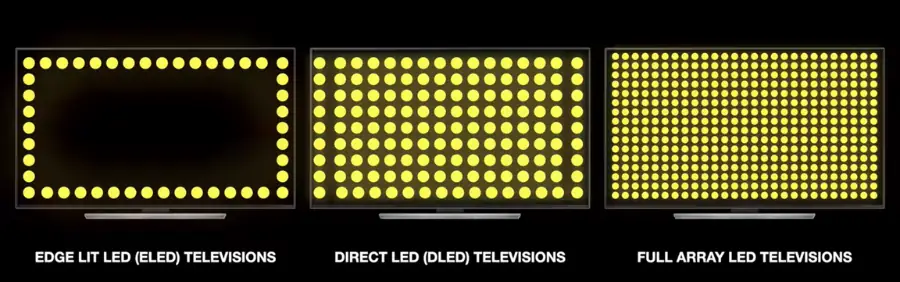
There are a few common implementations. Edge-lit panels place LEDs along the screen edges and use light guides to spread illumination. Full-array local dimming (FALD) has LEDs spread across the whole panel in a grid, allowing better control. Mini-LEDs take that further: thousands of much smaller LEDs give many more zones and more precise control. The more zones you have, the more precise the result — and the fewer the visible artifacts.
Advantages of Local Dimming
On a good panel, the difference isn’t subtle — dark scenes gain depth immediately, and bright highlights stand out instead of looking washed out. Here’s why it’s worth paying attention to:
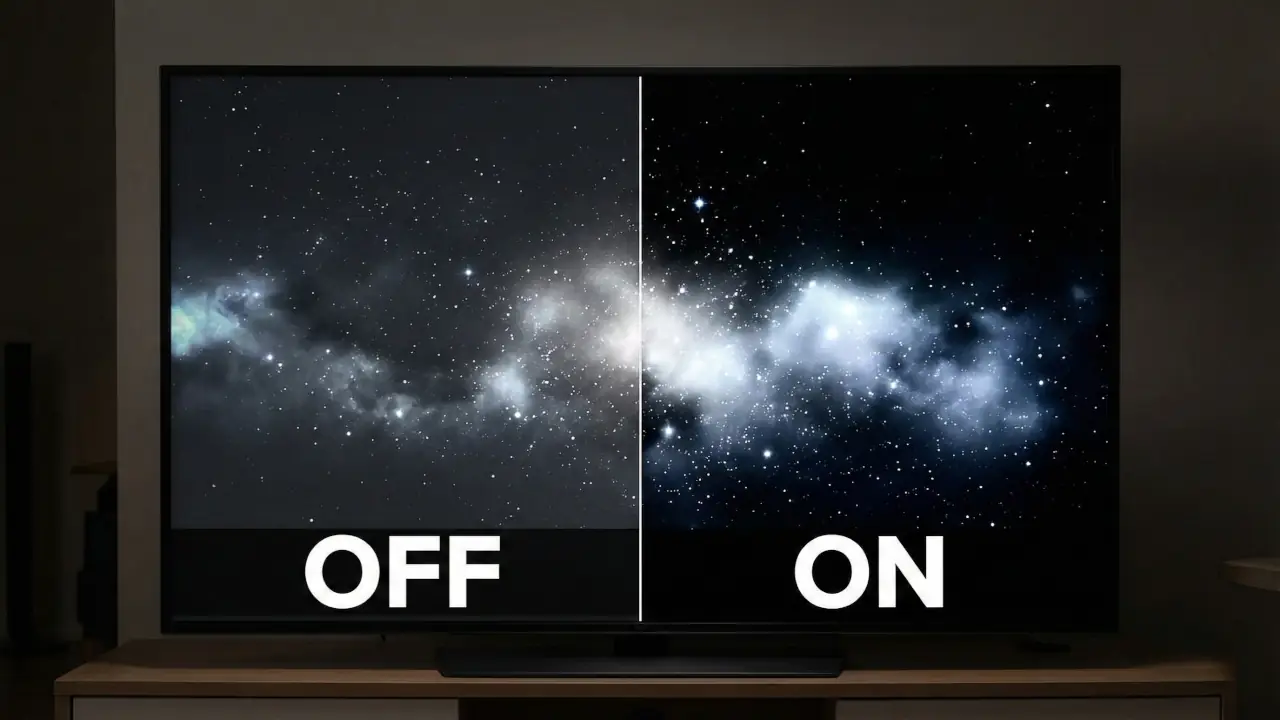
First, it improves the contrast ratio. By dimming the backlight behind dark areas, displays can show much deeper blacks next to very bright highlights. That punchy contrast makes scenes look three-dimensional and much closer to the filmmaker’s intent. This really stands out on dark scenes with bright points of light, like stars or neon signs.
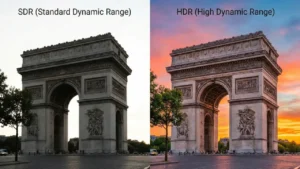
Second, it dramatically helps HDR performance. High Dynamic Range (HDR vs SDR) content is mastered to contain extremely bright highlights and very detailed shadow areas at the same time. Without local dimming, an LCD panel generally can’t produce both bright highlights and deep darks simultaneously. Local dimming enables that separation, letting HDR content breathe and look more lifelike.
Third, it creates a more immersive viewing experience. For movies, documentaries, or single-player games where visual fidelity and cinematic looks matter, local dimming can dramatically increase immersion. Skies look deeper, shadows hold detail, and highlights pop in a way that flat, uniformly backlit displays simply don’t manage.
Downsides: Blooming and the Halo Effect
Local dimming isn’t perfect. The most obvious artifact is called blooming or the halo effect. This happens when a dimming zone is larger than a bright object in the image. The bright object lights up the whole zone, and some light “bleeds” into adjacent dark areas, creating a visible glow or halo.
You’ll notice it around small bright objects like subtitles, a moon in a night sky, or a white cursor over a dark background. DisplayNinja and other tests explain how this occurs and why the number of zones matters.
Another issue is shadow crushing. If a dimming algorithm is aggressive, it can dim a zone so much that subtle shadow details disappear. This is most likely with low-zone or edge-lit designs that don’t have the granularity to keep small dark details while brightening nearby highlights.
There’s also the potential for slight processing delays. The display needs to analyze incoming frames and adjust zones in real time. On some sets that can introduce a small amount of input lag, which won’t bother most people but can matter in competitive gaming. RTINGS and other lab testers note that modern TVs mitigate this in game modes but it’s still worth being aware of.
When to Keep Local Dimming ON
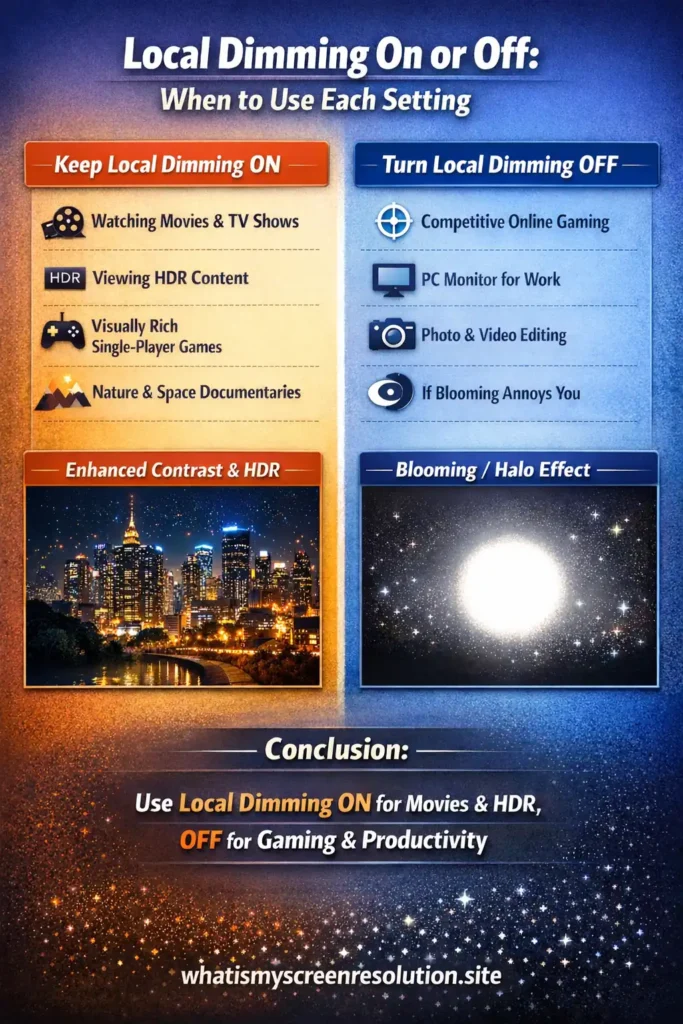
For most people and most uses, local dimming should be left on. Here are the main scenarios where it’s clearly beneficial.
- Watching Movies and TV Shows: If you watch a lot of films — especially in a dim room — local dimming delivers the cinematic deep blacks and bright highlights that pull you into the scene. It makes dark scenes feel richer and more detailed.
- Viewing HDR Content: If you’re watching content in HDR10, Dolby Vision, or HLG, local dimming is practically a requirement to get the full benefit of HDR. Turning it off leaves HDR looking flat because the display can’t show bright highlights without washing out dark areas.
- Playing Visually Rich Single-Player Games: For story-driven or visually rich games (think big open-world RPGs or cinematic adventures), local dimming increases depth and realism. It helps night scenes look truly night-like and makes lava, explosions, and lighting effects feel alive.
- Watching Nature, Space, or Cinematic Documentaries: Natural contrast is crucial for these genres; small details in shadows matter. Good local dimming makes star fields, dark forests, and ocean depths appear far more realistic.
- Choosing the right level: If your TV gives options (Off, Low/Normal, High), start with Medium/Normal. If you see strong halos, reduce to Low. If you want maximum contrast and your display handles it well, High can be spectacular.
On my own Mini-LED test panel (576 zones), HDR movies like Blade Runner 2049 looked dramatically better with local dimming on Medium. Turning it off made dark scenes appear washed out and grey. However, on a cheaper edge-lit set I tested earlier, High caused obvious halos around subtitles — so lowering it to Low gave a better balance.
When to Turn Local Dimming OFF
There are situations where turning local dimming off gives a better, cleaner experience.
- Competitive, Fast-Paced Online Gaming: For eSports-style gaming where input lag and frame-to-frame predictability matter most, local dimming might add tiny lag or frame processing that you don’t want. Many displays automatically reduce or disable aggressive post-processing in “Game Mode” for this reason. If you play FPS or high-speed multiplayer competitively, try turning it off and see if responsiveness improves.
- As a PC Monitor for Productivity: If you’re using the screen for general desktop work — browsing, spreadsheets, coding — the constant presence of small bright UI elements (the mouse cursor, icons, text on varying backgrounds) can cause an annoying flutter or haloing as zones adjust. Turn local dimming off for a consistent, steady image.
- For Critical Content Creation: Photographers, colorists, and video editors sometimes prefer to disable local dimming while editing. Editing demands absolute accuracy in shadows and highlights, and the dimming algorithm can unintentionally hide or crush tiny details during grading.
- If Blooming Annoys You: This one’s personal. If those halos drive you nuts and crash your immersion more than slightly greyish blacks do, turn it off. If your display offers levels (Low/Medium/High), try a lower setting first.
Practical tips for tuning Local Dimming
Experiment — but do it smart. If your TV or monitor offers presets, use them as starting points. Many sets let you pick “Cinema,” “Movie,” “Game,” or user-defined profiles that change local dimming strength.
If halos are visible, try:
If you’re unsure, toggle local dimming on and off while watching a few different clips: a bright daylight scene, a dark night scene with small highlights, and a mid-toned daytime scene. That will reveal how your set handles a range of content.
I personally keep two presets saved — one with local dimming on Medium for movies and one with it off for desktop work. Switching between them takes seconds and avoids constant menu diving.
Does Local Dimming Save Energy? (Test Results Explained)
Yes, to some extent. Because local dimming reduces backlight power in dark areas, the panel uses less energy when a lot of the picture is dark. The energy savings depend on what you watch — an all-dark movie will save more power than a bright sports broadcast. This side benefit is real but secondary to picture quality.
In my own testing using a simple wall power meter, I noticed darker HDR scenes consumed slightly less power with local dimming enabled compared to when it was turned off and the backlight stayed uniform. The difference wasn’t massive, but during extended movie sessions it was measurable — especially on higher brightness settings.
Mini-LED, FALD, and Why Zone Count Matters
Zone count is the simplest way to understand why one local dimming implementation looks better than another. An edge-lit TV with just a handful of dimming zones will produce larger halos and less precise blacks.
FALD panels have many zones across the panel and allow much better separation between bright and dark regions. Mini-LED takes this further — thousands of tiny LEDs offer a high zone count and much finer control, reducing haloing noticeably.
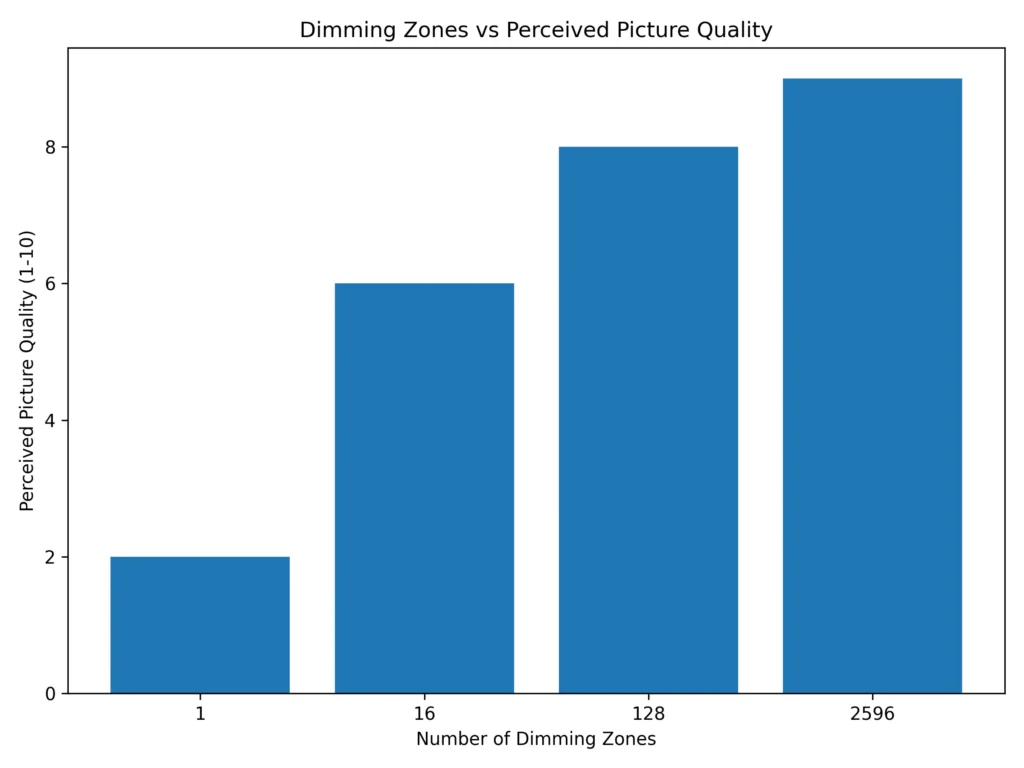
After testing multiple panels, I’ve found that anything under 50 zones tends to show visible halos in dark scenes. Once you cross a few hundred zones (typical of Mini-LED), blooming becomes much less distracting.
| Scenario | Local Dimming ON | Local Dimming OFF |
| HDR Movies | Deep blacks, strong highlights | Flatter contrast |
| Competitive FPS Gaming | Possible slight lag | Maximum responsiveness |
| Office Work | Possible halo around cursor | Stable brightness |
| Photo/Video Editing | Risk of shadow crushing | More consistent grading |
| Dark Room Viewing | Strong cinematic look | Greyish blacks |
Also Read: GTG vs MPRT: Don’t Buy a Monitor Before Reading This
Conclusion
If you want movies and HDR to look their best in a dark room, leave local dimming on. It’s the single most effective setting in LED/LCD displays for deep blacks and dramatic highlights. Switch it off for competitive gaming or when you need perfectly consistent brightness for productivity or critical editing. If your panel offers multiple intensity levels, start with Medium and tweak from there. In short: use the feature when appearance and immersion matter, and turn it off when speed or absolute accuracy is your priority.