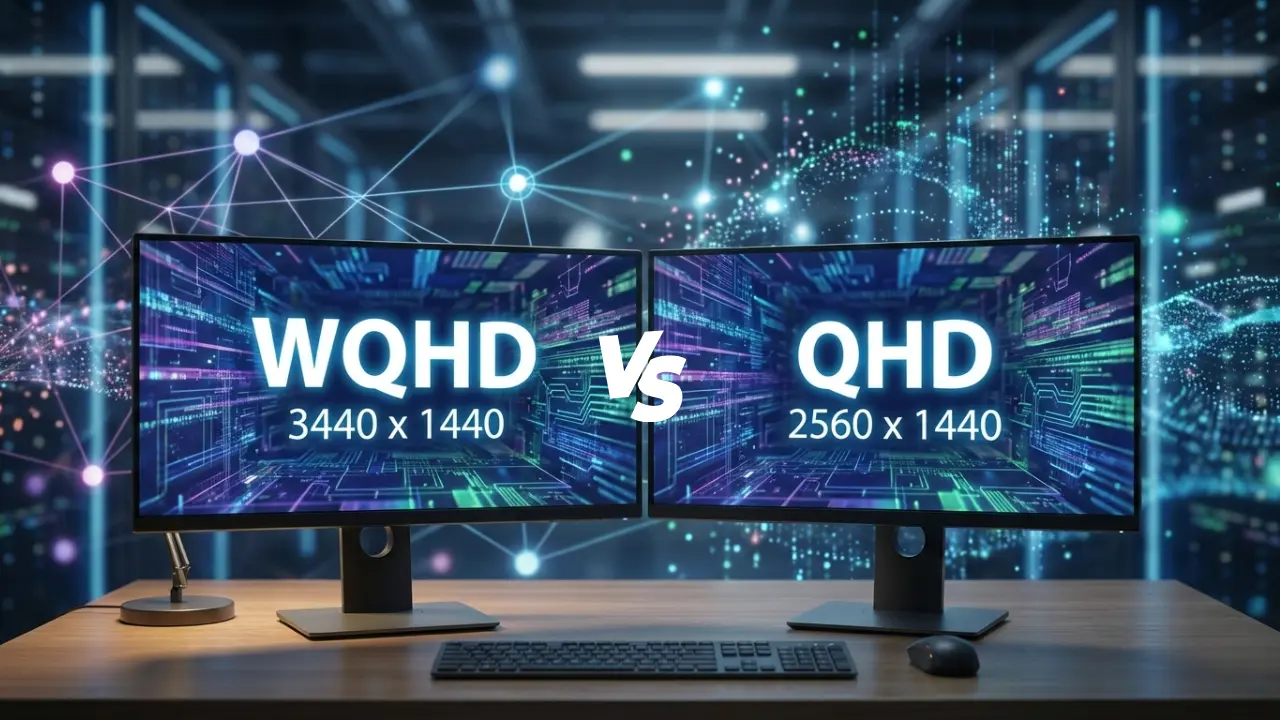
Have you ever shopped for a new monitor or laptop and felt confused by terms like QHD and WQHD? You’re not alone. I remember upgrading my own setup from a 24-inch 1080p monitor to a 27-inch 1440p display and staring at the product page, wondering if QHD and WQHD were actually different things or just clever marketing.
Once I started using the screen daily — editing documents, running multiple browser windows, and testing games — the clarity jump was obvious. But the naming still felt unnecessarily confusing. That frustration is actually one of the reasons I built WhatisMyScreenResolution to help people understand what their screen is really showing without digging through spec sheets or marketing buzzwords.
In everyday conversations, people often assume WQHD and QHD are completely different resolutions. In reality, they’re far closer than most buyers realize. By the end of this article, you’ll clearly understand WQHD vs QHD, how they compare in real use, and which one makes sense for gaming, work, or streaming — without second-guessing your purchase.
Also Read: Display Resolution Explained (720p, 1080p, 1440p, 2K, 4K, 5K, 8K)
WQHD vs QHD
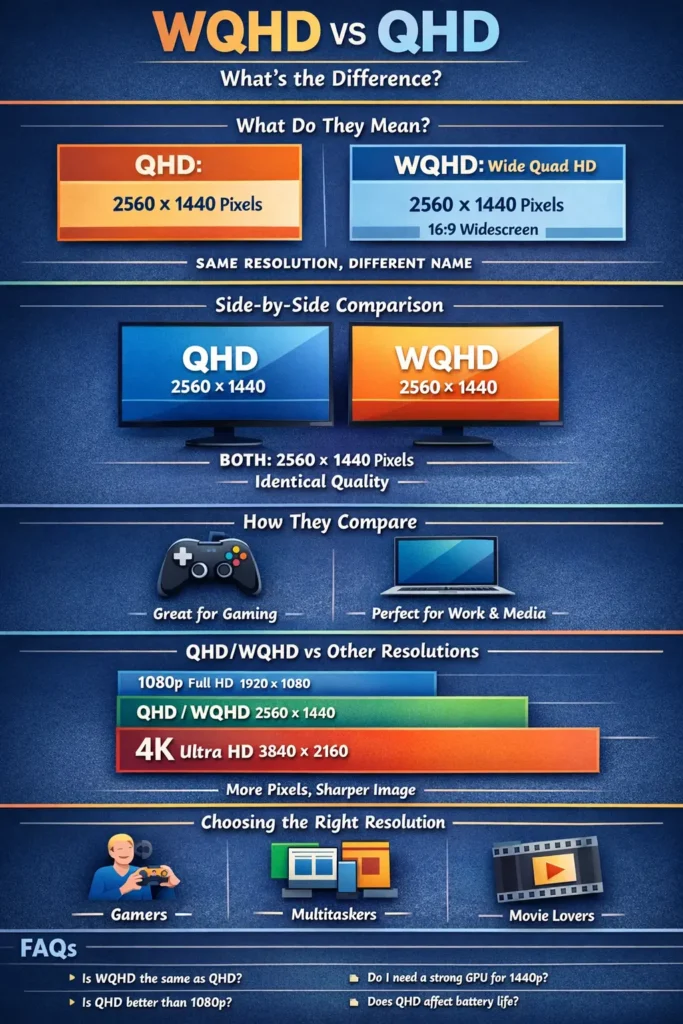
WQHD and QHD usually mean the same thing: a display resolution of 2560 × 1440 pixels. The “W” in WQHD simply emphasizes a widescreen (16:9) format, which most modern displays already use. In everyday use, there is no visual or performance difference between them.
What is QHD?
When you see QHD, it stands for Quad High Definition. In simple terms, it’s a screen resolution of 2560 x 1440 pixels. That number might seem like a bunch of digits, but here’s what it means: there are 2,560 pixels across the width of the screen and 1,440 pixels from top to bottom. If you multiply those together, you end up with around 3.68 million individual pixels, which delivers a noticeably sharper picture than Full HD (1920 x 1080).
The “quad” part of QHD comes from the idea that it has roughly four times as many pixels as HD (720p), which was an early baseline standard for digital displays. This results in clearer images, cleaner text, and more space to work on your screen without things looking blurry or stretched.
QHD is often seen in mid-to-high-range monitors, gaming setups, laptops, and even some high-end phones. Its popularity stems from hitting a sweet spot between visual quality and performance — you get a big jump in clarity without the heavy hardware requirements of 4K.
If you want to see your own screen resolution live, you can use tools like the Screen Resolution Test on this site.
What is WQHD?
WQHD stands for Wide Quad High Definition. That sounds like it might be a big step up, right? But interestingly, it’s actually the same pixel resolution as QHD: 2560 x 1440 pixels.
So why do manufacturers bother with the extra “W”? It’s mostly about marketing and clarity. The “Wide” reinforces that the screen has a 16:9 widescreen format, which is the standard shape for most laptops, TVs, and monitors today. Originally, the “W” was used to make sure people knew the resolution was not a more square format — but for almost all modern devices, it’s the same thing you see when a product says QHD.
Think of WQHD as a QHD screen that is clearly a widescreen format. Almost every QHD display you see today is wide, so the terms are effectively interchangeable in most consumer contexts. That’s why you’ll often see spec sheets use one term or the other depending on branding.
WQHD vs QHD: Comparison
Now that we’ve established what QHD and WQHD are, let’s talk about how they compare in practical use — that’s the stuff you’ll care about when choosing a display.
Terms That Mean the Same
First, the surprising part: in the vast majority of cases, WQHD and QHD are the same resolution — both are 2560 x 1440 pixels.
So, if you’re worried that WQHD magically means “better quality,” that’s usually not true. It simply confirms the widescreen aspect ratio. In most consumer devices today, the aspect ratio will already be widescreen (16:9), so it doesn’t change the pixel count or the visual fidelity.
Same Number of Pixels
Both resolutions give you the same number of pixels on the screen. That means you’re getting the same sharpness, the same clarity, and the same amount of detail. The difference is more about labeling than how the screen actually performs.
Naming Origins
Originally, “QHD” might refer to any display with approximately four times the resolution of HD. “WQHD” came along to specify that the display is specifically wide, because older screens weren’t always in 16:9 format. Now that widescreen is the default, the distinction is mostly historical.
Key Takeaway
If you’re looking at a specs sheet and trying to decide between two monitors labeled WQHD and QHD with the same pixel count, don’t stress over the naming — focus on features like refresh rate, panel type (IPS, VA, OLED), color accuracy, and price instead.
Performance and Usability
Resolution isn’t just a set of numbers on a box — I notice it every day in how my screen actually feels to use. On a QHD/WQHD display, I can place two full-size browser windows side by side, read text comfortably without zooming, and edit photos without constantly scrolling. It’s a noticeable upgrade from 1080p without the tiny text and scaling issues I often run into on smaller 4K screens.
Graphics and Video Quality
With 2560 x 1440 pixels, both QHD and WQHD create images that are sharper and more detailed than Full HD (1080p). You’ll notice smoother edges in graphics, clearer text when you’re editing documents, and more room on your screen for multitasking.
This extra clarity makes a big difference if you spend long hours on your computer — whether it’s photo editing, spreadsheets, or watching high-resolution video. For gaming, the improvement in detail is immediately noticeable compared to 1080p.
Hardware Demands
Because you’re displaying more pixels, your graphics processor (GPU) has to work harder than it would for 1080p. If your GPU is older or basic, you might see drops in performance in graphically demanding games or video editing tasks at QHD/WQHD.
This doesn’t mean QHD screens are bad — it just means you should match your hardware to your screen resolution if you want high frame rates or smooth performance. For productivity work, this isn’t typically a big issue.
Everyday Usability
One of the biggest perks of 1440p screens is usable workspace. You can fit more windows side by side without things feeling cramped. It’s a great balance between Full HD and 4K — giving you a lot of screen real estate without making text and icons too small to read comfortably.
Choosing the Right Resolution
If WQHD and QHD are the same in most cases, how do you choose the right screen for your needs? Here’s how to think about it.
If You’re a Gamer
1440p (QHD/WQHD) is often a sweet spot for gamers. It looks noticeably better than 1080p, but doesn’t push hardware nearly as hard as 4K. Many gamers prefer this resolution because high frame rates are easier to achieve without the highest-end GPU.
Just be sure your system can handle it — especially if you’re into competitive gaming or use high refresh rates (120Hz, 144Hz, 240Hz).
For Work and Productivity
If your job involves lots of windows, spreadsheets, or content creation, a QHD/WQHD screen gives you more room without forcing tiny text sizes like 4K sometimes does. It’s perfect for laptops and desktop monitors alike.
For Watching Movies and Streaming
A widescreen 16:9 display at 2560 x 1440 gives great video quality for streaming platforms. You’ll see more detail in scenes compared to 1080p, and the widescreen format fits most modern video content without black bars.
For Phones and Portable Devices
Some high-end phones use variations of QHD/WQHD to increase clarity in smaller displays. But because the screen size is tiny, the higher resolution mostly contributes to sharpness rather than workspace.
WQHD & QHD vs Other Resolutions
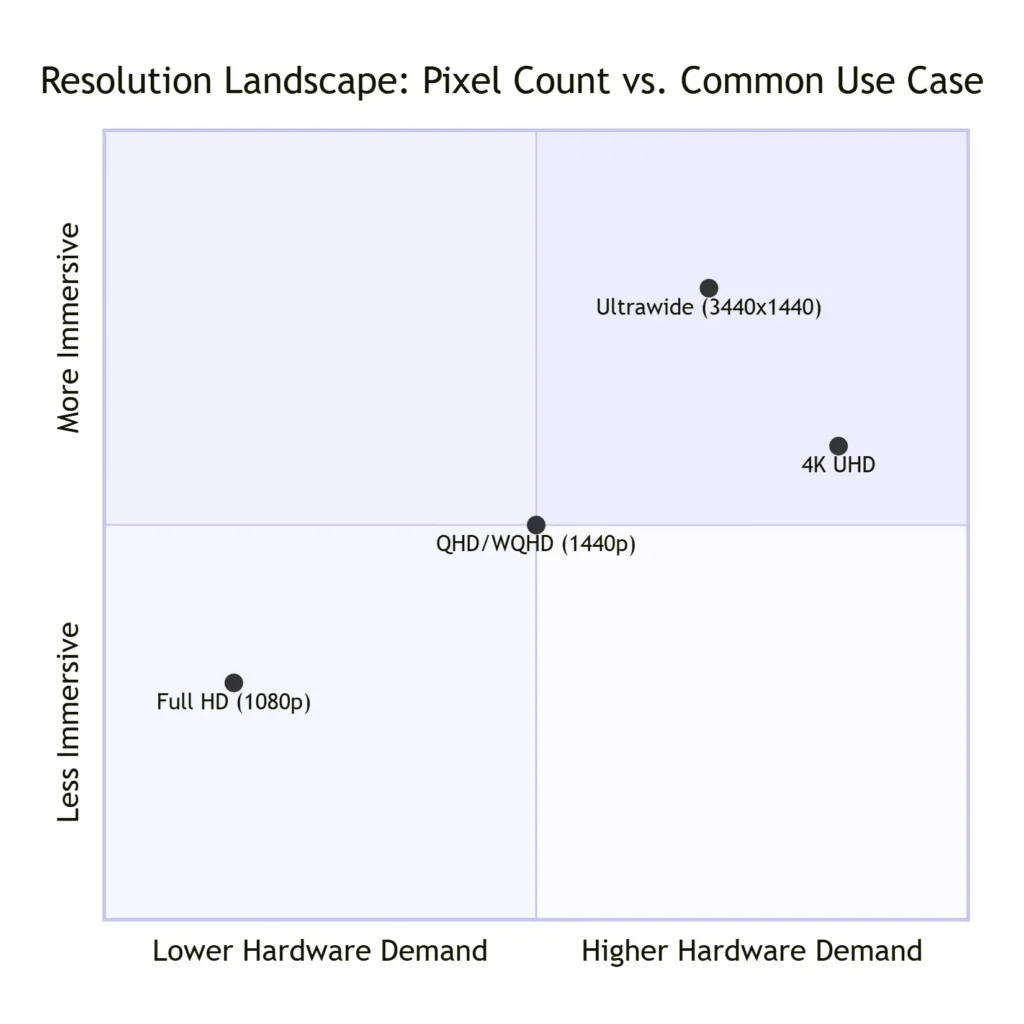
It helps to put QHD/WQHD into context with other popular resolutions.
Full HD (FHD / 1080p)
At 1920 x 1080, FHD is the longstanding standard for many TVs, monitors, and laptops. QHD/WQHD has roughly 77% more pixels, meaning sharper text and better detail.
UltraWide QHD (UWQHD)
This is a wider 1440p format, like 3440 x 1440, which gives extra horizontal space. It’s great for multitasking or immersive gaming, especially in racing or simulation games, but your GPU has to push even more pixels.
4K UHD
With a resolution of 3840 x 2160, 4K has more than twice the pixels of QHD/WQHD. That means finer detail but also much higher demands on GPU power and scaling (text and interface elements can feel tiny on smaller screens).
8K and Beyond
8K is mostly reserved for large TVs and professional workflows today. Unless you’re doing ultra-high-end video editing or work on massive displays, the jump from QHD to 8K isn’t necessary for most people.
Also Read: What Is 2K Resolution
Conclusion
In the debate of WQHD vs QHD, the bottom line is simple: for most users and devices, they mean the same resolution — 2560 x 1440 pixels. The “W” just highlights that the display is widescreen, which almost all modern screens already are.
Instead of worrying about labels, it’s better to look at the screen’s total specs: refresh rate, panel type, color accuracy, ports, and price. QHD/WQHD offers a fantastic balance of clarity and performance for gaming, productivity, and everyday use. Whether you’re picking a new laptop, monitor, or even a phone, a 1440p screen is often a great choice.
If you want to see exactly how crisp your screen looks or compare with other resolutions, try our resolution comparison tools on Whatismyscreenresolution — they’ll show your live pixel count and help you understand exactly what your display is showing.