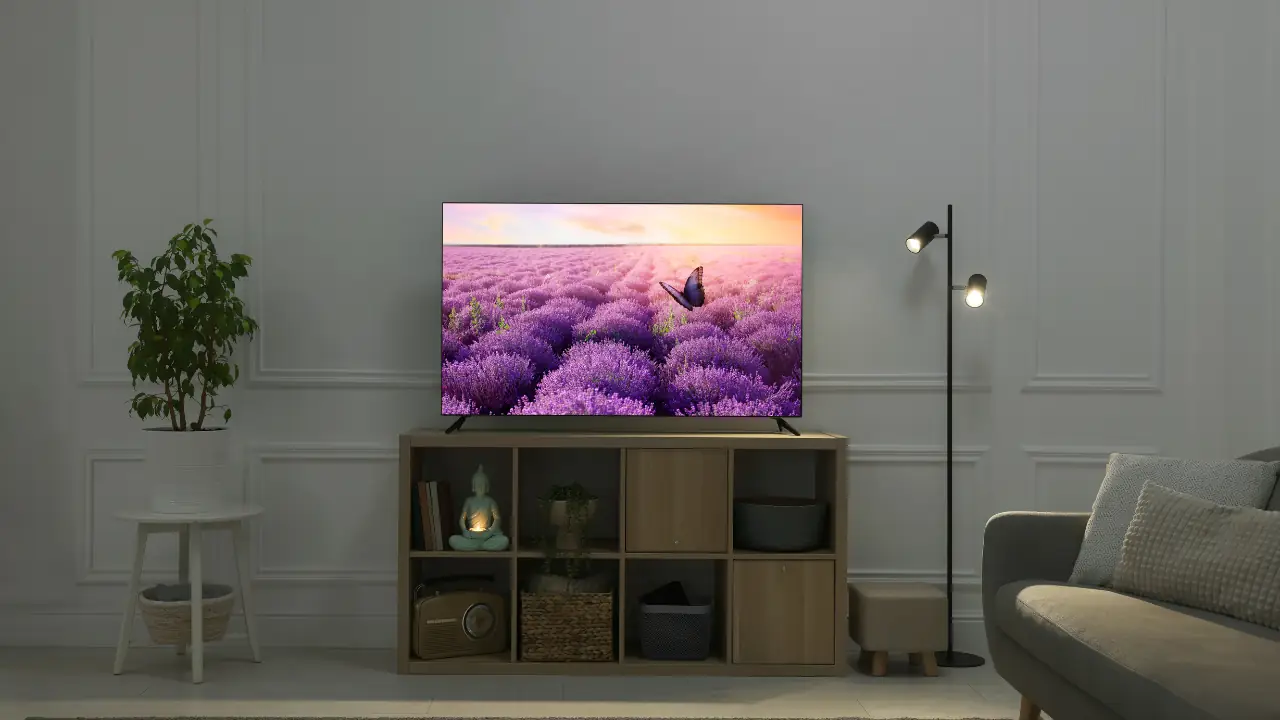
If you’ve ever stared at your TV or monitor settings and wondered whether you should switch HDR On or Off, you’re not alone. It’s one of those settings that sounds fancy and confusing, and most of us just leave it on in hopes it’ll magically make everything look better. But does it really? And is it always good to keep it on? Let’s sit down with a cup of coffee and unpack this together.
HDR stands for High Dynamic Range — a feature that’s been popping up everywhere from phones to high-end TVs to gaming monitors. At first glance, it promises richer colors, brighter highlights, deeper shadows, and an overall “more lifelike” look on your screen. But here’s the catch: not every device handles HDR the same way, and not all content benefits from it. In some cases, turning HDR on might make images look washed out, overly bright, or even unnatural.
I’ve tested HDR across dozens of TVs and monitors while running whatismyscreenresolution.site, and one thing I’ve learned quickly is that HDR isn’t a universal “on is better” setting. I built this site because people kept asking why their screens looked different across devices — and HDR is one of the biggest reasons for that confusion.
Also Read: HD vs 2K vs 4K: A Friendly Guide to Display Resolutions
HDR On or Off
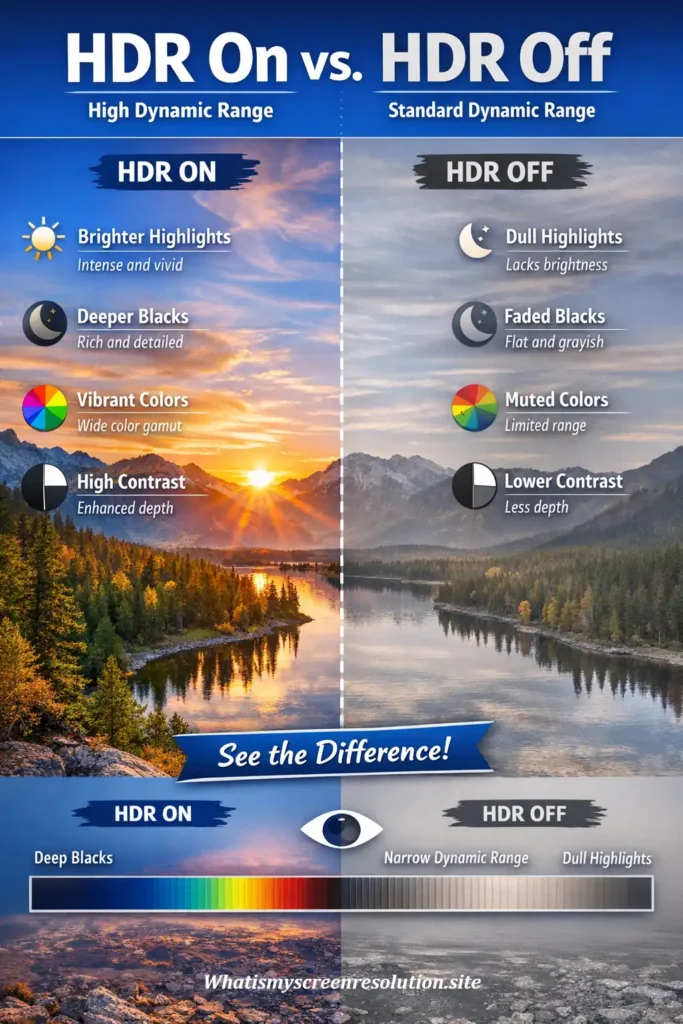
You should turn HDR On only when your TV or monitor supports true HDR and you’re watching HDR-encoded content like modern streaming shows or games. For everyday desktop use or non-HDR videos, keeping HDR Off often provides more accurate colors and consistent brightness.
What Exactly is HDR (High Dynamic Range)?
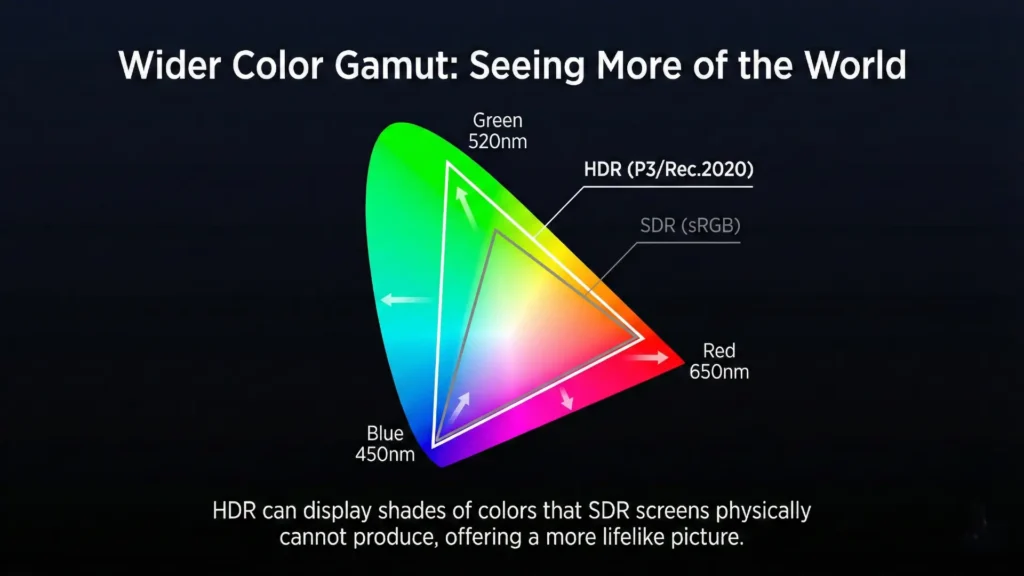
HDR stands for High Dynamic Range, and it’s a technology designed to improve how images and videos look on displays. Put simply, HDR gives your screen the ability to show a wider range of brightness levels and colors than standard displays. Think of it as expanding the difference between the darkest darks and the brightest brights on the screen.
In traditional displays (sometimes called SDR or Standard Dynamic Range), bright and dark parts of an image are limited. Shadows might look murky, and bright highlights might get washed out. HDR changes that by stretching the range so more detail appears in both extremes. When HDR is functioning well, you’ll notice things like sunlight that feels genuinely intense, shadows with more depth, and colors that feel vibrant but natural.
HDR isn’t about resolution — it doesn’t add more pixels. Instead, it enhances the quality of the pixels already there by giving screens more contrast and more lifelike colors.
Benefits of HDR
When HDR works properly, it can significantly enrich your viewing experience. Let’s break down the main benefits you’ll see:
Potential Pitfalls: Why You Might Turn HDR Off
Despite the advantages, HDR isn’t always perfect. Here are some reasons people sometimes choose HDR Off:
First, not all HDR implementations are created equal. Budget TVs and monitors sometimes advertise HDR, but their hardware simply can’t make the most of it. This can result in overly bright whites, dull colors, or weird highlights.
Second, HDR content itself matters. If the video or photo wasn’t created with proper HDR mastering, turning HDR on can make it look worse. You might see washed-out shadows or overly bright highlights that overshadow other details. In other words, bad HDR content + HDR On = disappointment. (We’ll dive into content issues more below.)
Some people also find that HDR can make skin tones or shadow details look unnatural, especially on devices that don’t reach high peak brightness or have poor color accuracy.
Is Your Setup Truly HDR Capable?
Before asking yourself HDR On or Off, the real first question is: Is your setup ready for HDR?
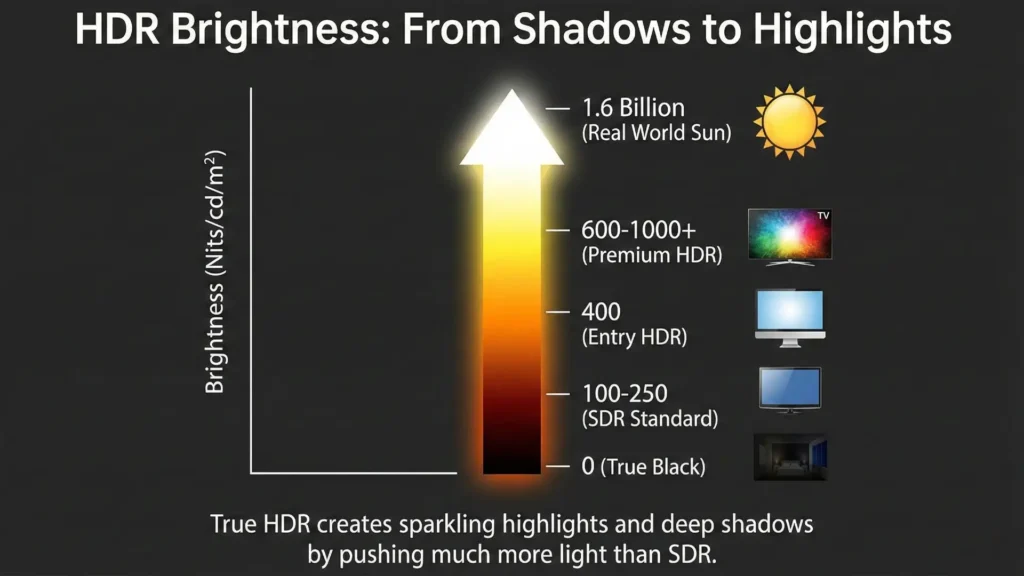
Here are some clues your device actually supports HDR the way it’s meant to be seen:
If your screen doesn’t meet at least a few of these conditions, you might not see much difference with HDR turned on. And in some cases, it may even degrade the picture quality.
While testing displays for resolution and display capability on my own setup, I noticed that entry-level “HDR” monitors often looked worse with HDR enabled. On one 400-nit monitor, enabling HDR actually reduced contrast and made whites look gray — something I could immediately confirm by switching HDR off and rechecking the display output.
The Importance of Source Material
Here’s the part people often overlook: HDR doesn’t automatically make all videos or photos look better. It only shines when the content itself is encoded for HDR. That means the movie, show, game, or video you’re watching needs to be created and distributed with HDR metadata.
Platforms like Netflix, Disney+, and Amazon Prime offer HDR versions of certain shows and films. So does Ultra HD Blu-ray. Games on modern consoles like Xbox Series X or PlayStation 5 often include HDR support too. But if you’re watching older content or standard broadcasts, HDR won’t help — and sometimes it might even make those scenes look worse if your display tries to interpret them as HDR when they’re not.
A practical example? Imagine watching a nature documentary that was mastered in HDR: bright sunlit fields and deep forest shadows look stunning. But if you’re watching a random YouTube video that isn’t HDR, turning HDR on can skew the colors and contrast in unwanted ways.
When to Use HDR
So you’ve checked your device, and it’s capable. You’ve got good HDR content. Great. So when should you turn HDR On?
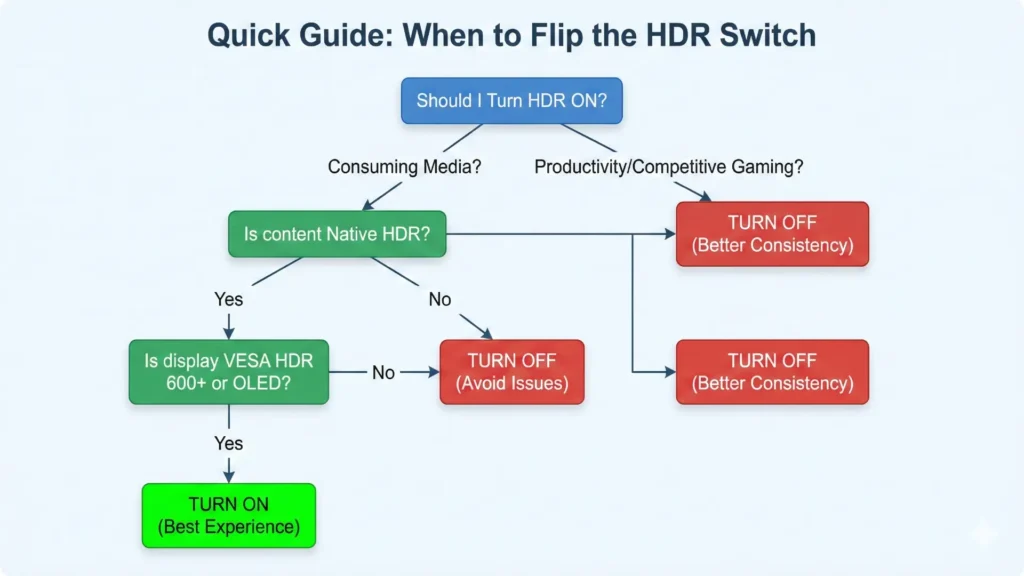
You’ll most likely benefit from HDR when:
In these cases, HDR can bring out details and colors that SDR simply can’t match. There’s a noticeable “wow” factor that many people love when everything lines up just right.
When Disabling HDR Makes Sense
Despite the appeal, there are times turning HDR off makes sense:
Sometimes, turning HDR off leads to a more natural and comfortable viewing experience — even if it seems like you’re giving up advanced tech.
HDR On vs HDR Off: Quick Comparison
| Feature / Scenario | HDR On | HDR Off |
| HDR Movies & TV Shows | Brighter highlights, richer colors | Misses HDR detail |
| Non-HDR Videos | Can look washed out | More natural colors |
| Gaming (HDR-supported titles) | Better lighting & immersion | Flatter visuals |
| Desktop & Browsing | Inconsistent brightness | Stable & comfortable |
| Budget Monitors | Often poor HDR experience | Usually looks better |
| High-End TVs / OLEDs | Excellent HDR performance | Leaves quality unused |
My Honest Recommendation
If I had to give one rule I personally follow: I leave HDR off by default, and only turn it on when I know the content supports it. For desktop work, browsing, and most videos, SDR still looks more natural on many screens. HDR is fantastic — but only when it’s intentional.
Also Read: Local Dimming On or Off? The Best Setting for Your TV
How to Toggle HDR On Your Devices (TV, Monitor, OS)
Every device and operating system handles HDR settings differently, but here are general steps for common devices:
Because every device is different, it’s worth checking the support page or manual for precise steps.
If you’re unsure what your display is actually capable of, I recommend first checking your screen resolution and display specs using our screen resolution detection tool. Knowing your exact resolution, refresh rate, and display type makes deciding on HDR much easier.
Conclusion
At the heart of the HDR On or Off question is whether HDR actually improves your specific experience. HDR can transform visuals, making them more vivid, more detailed, and more immersive — but that only happens when everything from content to display to connection is ready for it. When HDR doesn’t work well, it can make things look awkward or washed out.
The best rule of thumb? Test it. Watch HDR content with HDR enabled, then switch it off and compare. Your eyes, not the label, will tell you what looks best. When everything lines up perfectly, HDR can make media more engaging and realistic. But when it doesn’t, having HDR Off might actually make your screen look better to you.
Frequently Asked Questions (FAQs)
View Sources
- Microsoft Support: HDR Settings in Windows
- Rtings: Understanding HDR
- Personal hands-on testing across consumer TVs and monitors while running whatismyscreenresolution.site