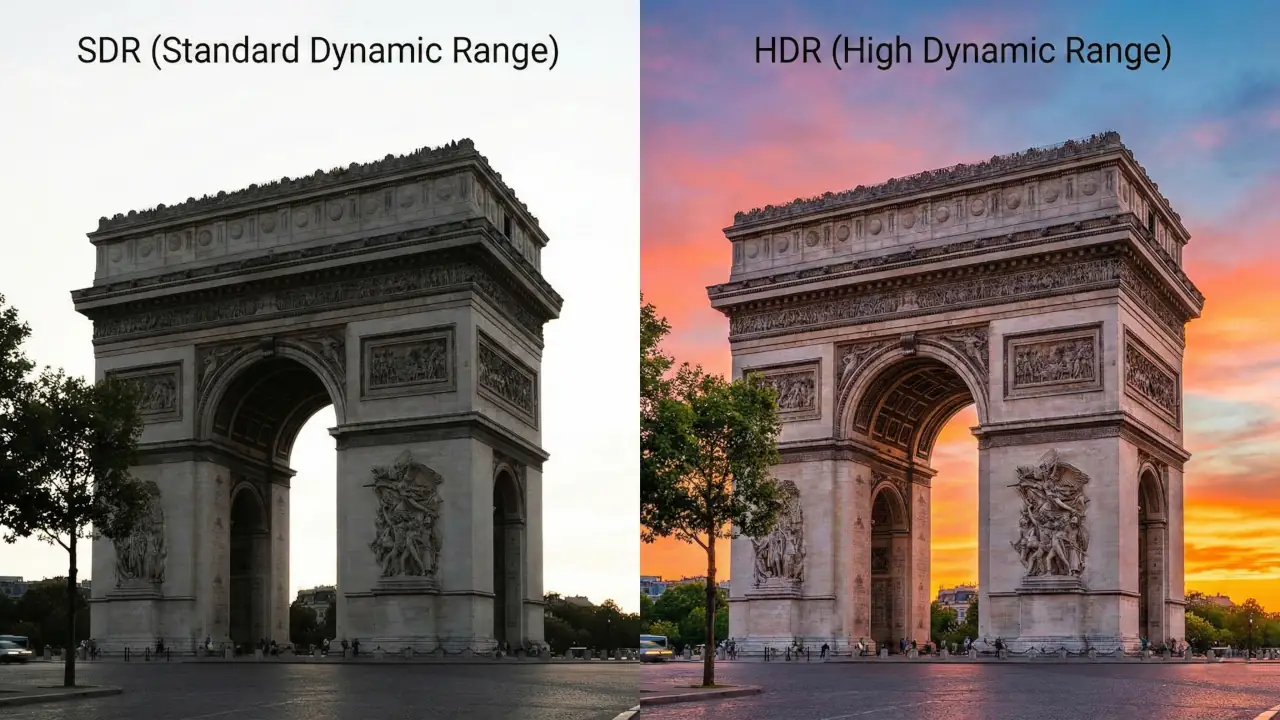
I’ve tested HDR on everything from budget LED TVs to high-end OLED panels while running whatismyscreenresolution.site. One thing I’ve learned is this: HDR can look incredible — but only when the display is actually capable of showing it properly.
I still remember comparing the same Netflix scene in SDR and HDR on my own TV. The difference in highlights alone completely changed the mood of the scene. But I’ve also seen “fake HDR” that looked worse than SDR. So is HDR truly better today? Let’s break it down clearly and practically.
When comparing HDR vs SDR, the real question is simple: does HDR actually look better in everyday viewing?
This guide breaks down HDR vs SDR in simple terms so you can understand which picture format actually looks better today. We’ll cover what HDR is and how it works, the technical bits that matter (peak brightness, color gamut, bit depth, gradients), plus the real-world pros and cons for movies, games, and photos.
I’ll show you how to actually get HDR working on your TV or monitor, list where you can find HDR content, and help you decide whether upgrading makes sense. I’ll also link you to a deeper comparison of HDR formats (HDR10, HDR10+, Dolby Vision) so you can pick the right gear without getting lost in jargon. By the end, you’ll know whether HDR is hype or a real step up.
Also Read: GTG vs MPRT: Don’t Buy a Monitor Before Reading This
HDR vs SDR: Quick Comparison
HDR (High Dynamic Range) delivers brighter highlights, deeper shadows, wider color range, and smoother gradients compared to SDR (Standard Dynamic Range). HDR typically uses 10-bit color and peak brightness up to 1,000+ nits, while SDR is limited to 8-bit color and around 100 nits brightness.
| Feature | HDR | SDR |
| Peak Brightness | 600–4,000 nits (content mastered) | ~100 nits |
| Color Depth | 10-bit (1B+ colors) | 8-bit (16.7M colors) |
| Color Gamut | Rec. 2020 / DCI-P3 | Rec. 709 |
| Contrast Range | Much wider | Limited |
| Best For | Movies, modern games | Older TV content |
HDR vs SDR comes down to brightness and color range. HDR can show brighter highlights, deeper shadows, and more colors. SDR has a more limited brightness and color range but works well on older displays.
What is HDR and How Does it Work?
Think of HDR as a way to let a screen show more of the things your eyes see in the real world. In practice, that means a bigger brightness range (from deep shadows to dazzling highlights), more color, and smoother transitions between tones.
SDR content is typically mastered with a narrow brightness target — historically around 100 nits — while HDR moves that target much higher so highlights like sun glare or specular highlights can pop without crushing shadow detail.
HDR standards and formats define how content is encoded, what metadata (if any) travels with it, and the color spaces used. In short, HDR content contains instructions so a modern TV can try to reproduce the original creative intent more accurately.
A couple of quick technical pieces that matter:
- EOTF (Electro-Optical Transfer Function): HDR systems typically use a “PQ” curve (Perceptual Quantizer) which maps encoded values to perceived brightness in a way that’s better suited to wide ranges.
- Metadata: Some HDR formats send static metadata (one set of instructions for the whole title), while others use dynamic metadata (scene-by-scene or frame-by-frame adjustments). Dynamic metadata lets the display tone-map every scene more accurately.
- Color space & bit depth: HDR content commonly uses wider color spaces (like Rec. 2020 or DCI-P3) and at least 10-bit color depth, which reduces banding and gives smoother gradients.
If you want a focused technical comparison of HDR formats like HDR10, HDR10+, and Dolby Vision, check my detailed HDR format comparison guide where I break down compatibility and real-world differences.
HDR vs SDR: A Comparison of Key Aspects
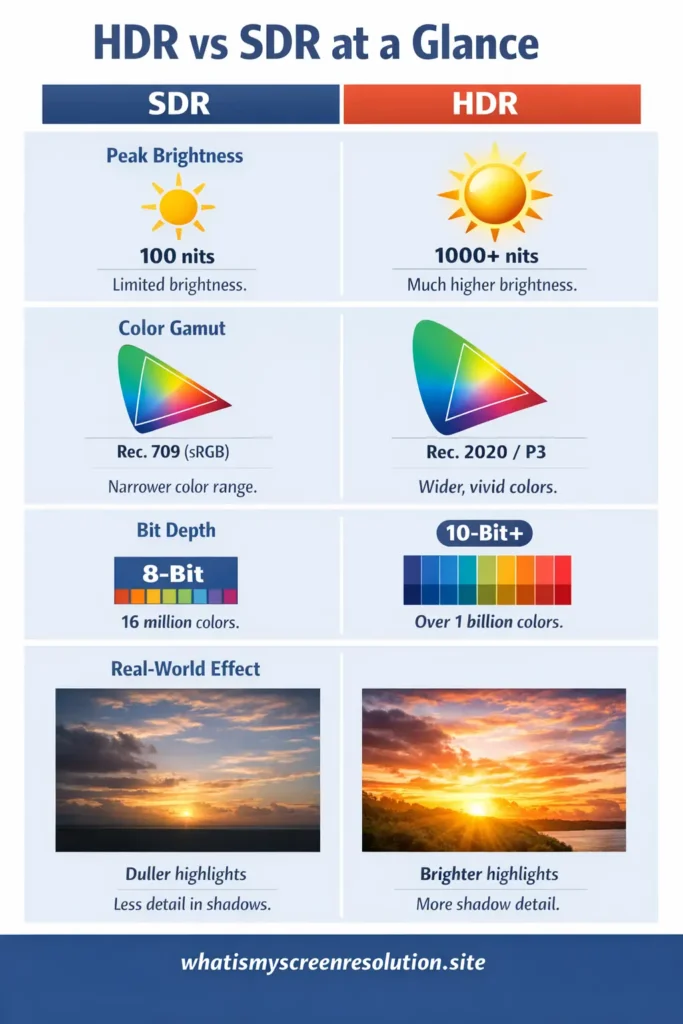
Below I’ll compare HDR and SDR across the core factors that actually change what you see: peak brightness, color gamut, color depth, and gradient handling. These are the things that determine whether a sunset looks “meh” or breathtaking.
Peak Brightness
Peak brightness is how bright the brightest parts of an image can get, measured in nits (cd/m²). SDR has historically been mastered around 100 nits. HDR content is mastered for much higher peaks — commonly 1,000 nits, sometimes 4,000 nits or even higher depending on the mastering workflow — though consumer TVs rarely reach the absolute theoretical ceilings of these formats. What matters is that HDR gives headroom: highlights can be much brighter without losing detail in shadows. That’s why fire, sunlight, reflections, and specular highlights look more realistic in HDR.
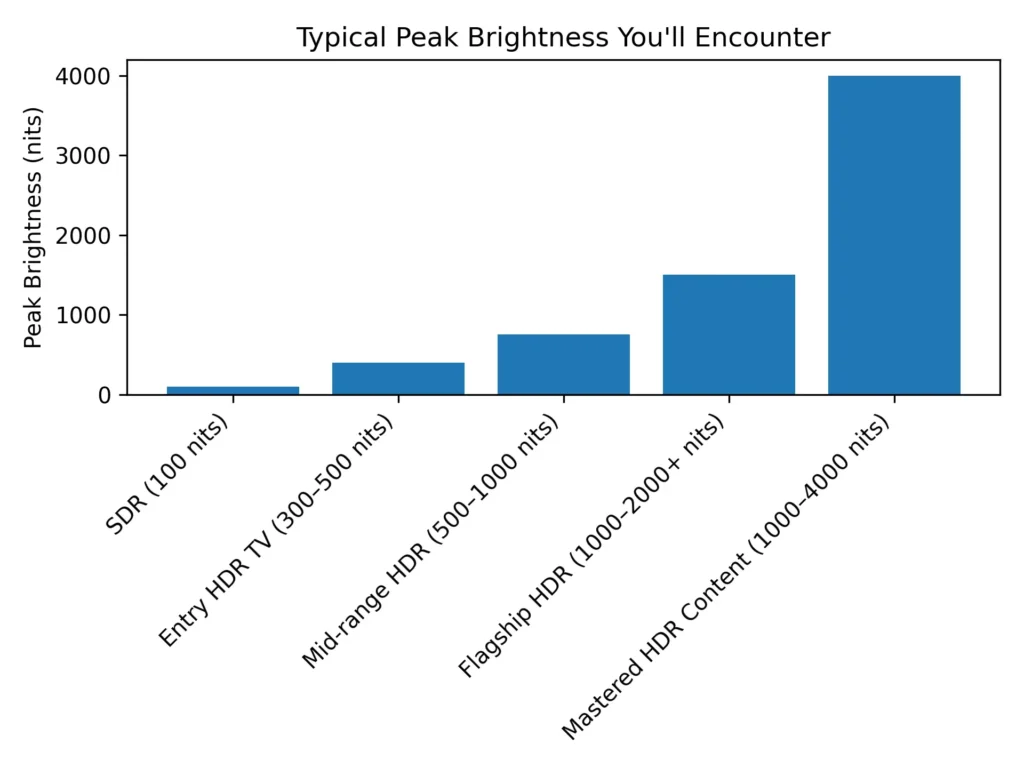
Real-world note: Even if an HDR video is graded for 1,000 or 4,000 nits, your TV will likely top out well below that. The TV’s firmware will tone-map the content to match the set’s maximum brightness, preserving detail where possible. So HDR’s advantage depends on both the content and the display.
Color Gamut
SDR content mainly uses the Rec. 709 (or sRGB) color space. HDR content moves to wider gamuts such as Rec. 2020 and often uses DCI-P3 for practical mastering. Wider gamut means a TV can show more saturated colors — deeper reds, more vivid greens — without clipping or shifting hues. This is especially noticeable in colorful scenes like tropical landscapes, neon cityscapes, and richly graded films. The combination of higher brightness and wider gamut is what gives HDR its “pop.”
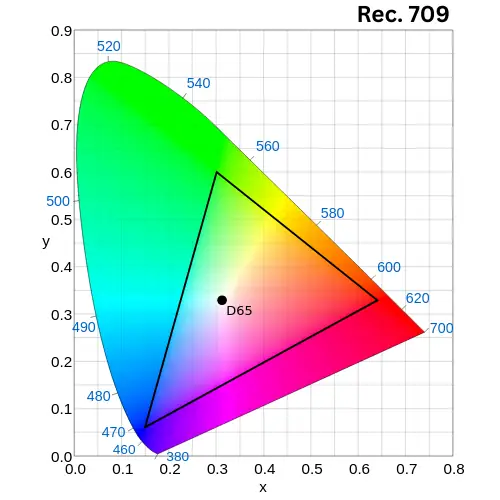
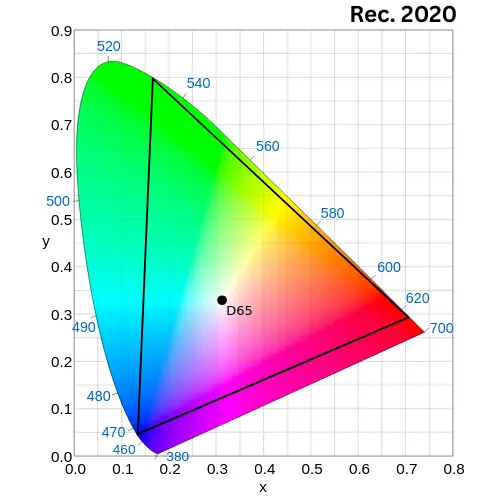
inside CIE 1931 x-y chromaticity diagram
Practical point: Most HDR content doesn’t always use the full Rec. 2020 space; creators often target P3-D65 levels because consumer displays aren’t all the way to full Rec. 2020. That’s okay — you still get a visibly wider range than SDR.
Color Depth (bit depth)
SDR is commonly 8-bit (256 shades per channel), which gives about 16.7 million colors. HDR almost always uses at least 10-bit encoding (1,024 shades per channel), producing over a billion colors. What that reduces is banding in smooth gradients — think skies and subtle skin tones. More bit depth + wider gamut = far smoother transitions and much less posterization.
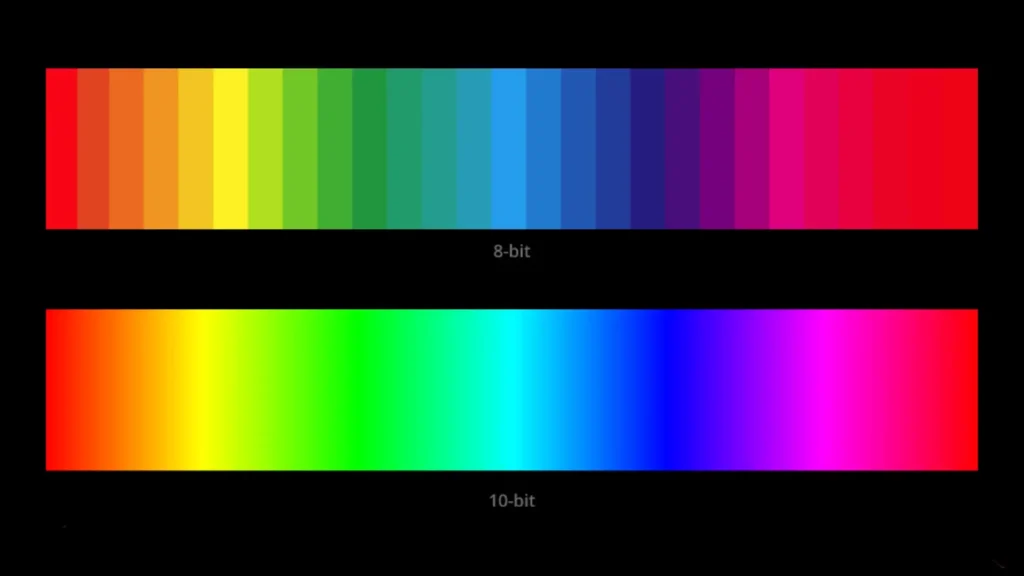
Note: A TV with an 8-bit panel can use dithering or other tricks to simulate 10-bit output, but native 10-bit panels are better for reducing artifacts.
Gradient Handling
Gradient handling combines color depth, processing, and tone mapping. SDR’s narrower range means gradients can show visible steps (banding) especially in low-contrast displays. HDR reduces that by increasing bit depth and using better transfer curves. But HDR brings its own challenge: if tone mapping is poor, highlights can clip (lose detail) or shadows can crush. Good displays with local dimming and capable tone-mapping hardware handle gradients much better, preserving both highlight and shadow detail.
HDR vs SDR Pros and Cons for Movies, Games, and Photos
When deciding whether HDR is better for you, break it down by content type: movies, games, and photos. Each behaves a bit differently.
Movies
Movies that are graded for HDR often look more immersive. You get deeper contrast, richer colors, and highlights that properly sparkle. This is particularly true for modern films and many streaming exclusives that are mastered in HDR.
Dolby Vision and HDR10+ with dynamic metadata can make scene-by-scene improvements that keep the director’s intent intact even on displays with limited brightness.
However, not all movies are available in HDR, and movie transfers vary in quality. A poor HDR grade can look worse than a well-done SDR grade. Compatibility issues (format support on your display) and imperfect tone-mapping can also spoil the moment. Some films intentionally use a muted palette — HDR won’t magically make them vivid if that wasn’t the creative choice.
Games
Games with HDR can deliver stunning lighting — explosions, glows, and realistic reflections look better. On modern consoles (PS5, Xbox Series X) and many PC titles, HDR can significantly improve immersion. It also helps with visual clarity in bright/dark scenes, which can aid gameplay in some titles.
However, HDR can add a setup and calibration step, and some games have weak HDR implementations that shift gamma or wash out colors. For competitive players, slight increases in input lag (if HDR is poorly implemented) or differences in luminance mapping could matter. Consoles generally handle HDR well, though PC HDR remains a mixed bag depending on drivers, the OS, and the game.
Photos
Proper HDR photos, or photos edited and exported for HDR, can show more nuanced highlights and shadow detail, making them appear more lifelike on HDR displays.
However, most photos taken with phones or cameras are SDR or pseudo-HDR. Viewing those on HDR displays can sometimes make them look over-processed or weirdly saturated if the display applies an aggressive HDR tone map. To really benefit, photos should be saved and exported in HDR-aware formats and viewed on calibrated HDR displays.
Is HDR Really Worth the Upgrade?
Short answer: usually yes for movies and casual gaming, but the value depends on your display, viewing environment, and what content you watch.
If you watch modern streaming content and movies, and you have an HDR-capable TV (especially an OLED or a high-brightness LED with good local dimming), HDR is a noticeable step up from SDR. On lower-end TVs that cannot reach decent peak brightness or have poor tone mapping, the difference can be small or inconsistent. Similarly, if you mostly watch older TV shows or content not mastered in HDR, you won’t see much benefit.
If you’re buying a monitor for professional photo/video work, HDR matters but you need a display with high color accuracy and certification (true HDR for pro work, not just a marketing badge). For competitive gaming where raw frame rate and low latency matter most, HDR is less critical than refresh rate and input lag — though it’s still a welcome visual bonus in many titles.
Real-World Test: What I Saw on My Own TV
On my 55-inch OLED, I tested the same scene from a Dolby Vision movie in SDR and HDR. In SDR, the bright window highlights looked flat and slightly blown out. In HDR, I could see texture inside the light source while still maintaining shadow detail in the darker corners of the room.
On a cheaper LED TV I tested earlier, the difference was smaller because the panel couldn’t get bright enough. That’s when I realized: HDR is only as good as the hardware behind it.
I built whatismyscreenresolution.site partly because I kept seeing confusion around resolution and HDR marketing terms. Many displays advertise HDR support, but real performance depends on brightness capability and tone mapping quality — something I test directly when reviewing screens.
How to watch HDR content on your TV or monitor
You can’t just press “HDR” and expect perfect results. Here’s a practical checklist and step-by-step guide so you actually see HDR the way it was meant to look.
What you need
Step-by-step setup
- Check the display’s manual. Find which HDMI input supports HDR/HDCP 2.2 and whether you need to enable an “enhanced” or “HDMI UHD” mode for that port. Sony, Samsung, LG, and others often require this step.
- Use the right cable. Connect the source directly to the TV with a high-quality HDMI cable. If you use an AV receiver or soundbar, confirm it supports the same HDMI standard and HDCP version.
- Enable HDR on the source. Consoles and some streaming boxes have HDR options in their display settings; turn HDR on or set it to auto. On PS5, for instance, go to Settings > Screen and Video > HDR.
- Enable HDR mode on the TV (if needed). Some TVs detect HDR automatically, others need you to select an HDR picture mode (Cinema, Movie, or HDR Standard). Avoid modes labeled “Vivid” or “Dynamic” if you want accurate color.
- Test with known HDR content. Use a verified HDR film or test clip (Netflix, Disney+, Amazon, or a 4K UHD Blu-ray) and confirm the app is set to 4K HDR output and you’re on the right subscription tier.
- Calibrate a little. If you want the best result, try adjusting OLED brightness, local dimming, or the TV’s contrast/black level. Many TVs have a built-in HDR calibration or “film tone mapping” toggle. If you’re unsure, start with the manufacturer’s HDR preset and tweak from there.
Some Sources and Services that Offer HDR Content
If you’re hunting for HDR movies, shows, or games, here are the usual places:
Practical Tips and Troubleshooting
If HDR looks off — washed out blacks, over-saturated highlights, or weird color shifts — try these fixes:
- Make sure the HDMI port is set to its enhanced/4K/HDR mode on the TV. Many TVs ship with HDMI ports in a conservative mode by default.
- Confirm the HDMI cable and any intermediary device (receiver/soundbar) support the required HDMI/HDCP version. If in doubt, connect the source directly to the TV.
- Update firmware on your TV and streaming devices. Manufacturers often push fixes for HDR tone-mapping and format compatibility.
- Check the streaming app’s settings and ensure your subscription allows HDR/4K. Some services show HDR only when your network bandwidth and device are adequate.
- If HDR increases input lag for gaming, some TVs provide a “Game HDR” or low-latency HDR mode — try that. If HDR causes inconsistent brightness, try toggling dynamic tone-mapping or switching to a different HDR format if available.
Also Read: QHD vs 4K (1440p vs 2160p): Which Should You Buy in 2026?
Frequently Asked Questions
Final Verdict: Is HDR vs SDR Worth It in 2026?
When comparing HDR vs SDR today, HDR clearly wins — but only on the right hardware.
Here’s my honest take after testing different TVs and monitors:
- For movies and streaming: HDR is absolutely worth it if your TV has good brightness and contrast (OLED or strong local dimming).
- For gaming: HDR adds immersion, but refresh rate and input lag still matter more for competitive players.
- For older TVs: The difference between HDR vs SDR may be minimal if peak brightness is low.
- For everyday viewing: SDR is still perfectly fine for cable TV, older shows, and basic content.
If your display can properly handle high brightness and wide color, HDR is not just marketing — it’s a visible upgrade. If not, SDR can actually look more consistent.
In short: HDR vs SDR isn’t about the label — it’s about the display quality behind it.
Conclusion
When comparing HDR vs SDR, HDR brings the potential for a more realistic, vibrant picture because it broadens brightness and color ranges and increases bit depth. That potential becomes real when the content, playback device, and display all support HDR properly.
If you mostly watch modern streaming shows, HDR movies, or play current-generation games, and you have a mid-range or better TV with decent peak brightness and color handling, HDR is worth the upgrade. If your TV is old, dim, or has poor tone mapping, waiting and upgrading to a better set later may give you a much bigger step-up.
Practical takeaway: if you’re buying a new TV and HDR is important, prioritize panel contrast (OLED or mini-LED with local dimming), peak brightness (higher nits), and good HDR format support (Dolby Vision + HDR10/HDR10+ ideally). Also ensure your streaming device, HDMI cables, and apps are HDR-ready. When in doubt, try the same HDR title in your living room and compare it to SDR on a known good reference — if the HDR version gives you that extra sense of depth and vibrancy without odd clipping, you’ve got the real deal.