Choosing a new monitor or TV feels like dating: the specs look great on paper, but what’s it actually like in real life? If you’re trying to decide between QHD (1440p) and 4K (2160p), you’re not alone. Both give you sharper images than old 1080p screens, but they do it in different ways — and with different costs and demands on your computer.
In short: I’ve personally used both 27-inch QHD and 27-inch 4K monitors on my desk for months — one paired with a mid-range RTX card and the other with a higher-end GPU. In daily use, I found QHD feels incredibly smooth at high refresh rates, while 4K clearly wins in fine detail for photo work and 4K video playback.
In this guide I’ll explain what each resolution actually means, show the upsides and tradeoffs, compare them side-by-side in a table, and help you pick the right one based on how you use your screen. I’ll also drop useful links back to your site for deeper reads and calculators so you can check pixel density for your monitor size. No jargon, just straight talk — like a friend who’s used both and can save you money and frustration.
Also Read: HDR vs SDR: What’s the Real Difference Explained Now
Quick Answer: QHD vs 4K
QHD (2560×1440) offers an excellent balance of clarity and performance, making it ideal for gaming and everyday use. 4K (3840×2160) delivers significantly sharper detail but requires more powerful hardware. At 27 inches, QHD is often the sweet spot, while 4K shines on 32-inch+ displays.
What is QHD?
QHD stands for Quad High Definition, commonly known as 1440p. The standard QHD resolution is 2560 × 1440 pixels, which gives around 3.7 million pixels on the screen. It’s often labeled as QHD, WQHD, or simply 1440p depending on the maker. QHD became popular because it’s a clear step up from Full HD without the heavy system and cost requirements that 4K brings.
Advantages of QHD
QHD shines where value meets performance. Text looks crisper than 1080p, images have more detail, and — importantly for gamers — many QHD panels support high refresh rates (120Hz, 144Hz, 240Hz). That means you can enjoy smooth, responsive gameplay while still getting a noticeable visual improvement over 1080p. QHD also demands less from your GPU compared to 4K, so getting high frame rates is easier and less expensive. This balance makes QHD a favorite for competitive and casual gamers, and for people who want a better-looking desktop without upgrading their whole PC.
Disadvantages of QHD
QHD isn’t a magic bullet. Compared to 4K, it has fewer pixels, so extremely fine detail (like in photo editing or when sitting very close to a large screen) won’t be as crisp. Technically, 1440p delivers about half the total pixels of 4K, which explains the visible difference in fine detail at larger screen sizes. On very large displays — say 32 inches and up — you may notice the difference compared to 4K. Also, while QHD monitors are more affordable than 4K counterparts, they are still pricier than basic Full HD displays.
What is 4K?
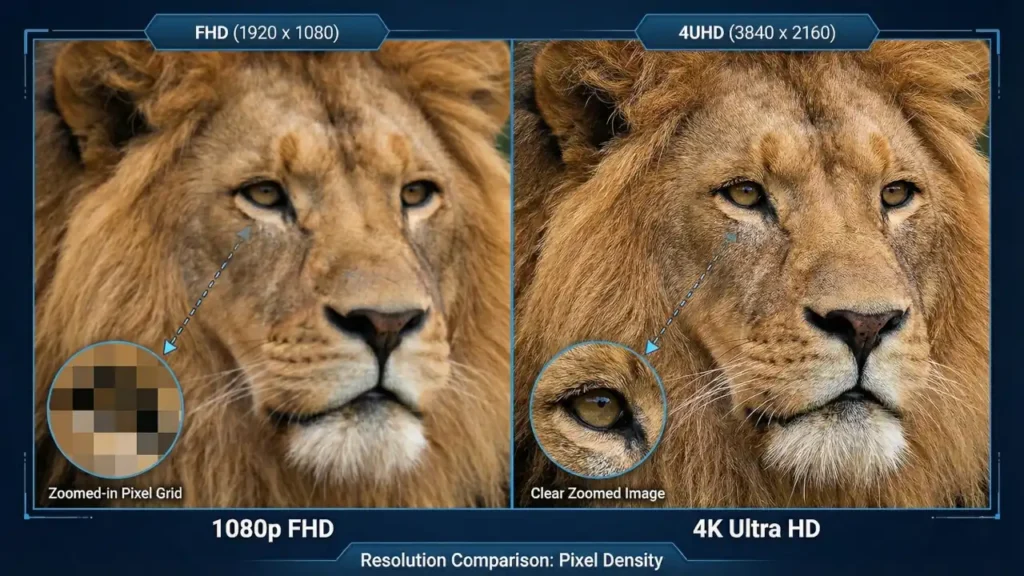
4K — often called Ultra HD or UHD in consumer products — is 3840 × 2160 pixels, roughly 8.3 million pixels. According to the official definition of 4K resolution standards, UHD used in consumer displays is 3840 × 2160 pixels. That’s four times the pixel count of Full HD and a lot more detail than QHD. For pro video editors, photographers, and anyone who wants the sharpest possible image, 4K is the clear winner.
Advantages of 4K
The main advantage is image fidelity. Text is razor sharp, images show tiny details, and video that’s natively shot in 4K looks fantastic. On TVs and large monitors, 4K prevents visible pixelation at normal viewing distances. If you do photo editing, color grading, or video work, the extra pixels give you more workspace and finer control. Also, as more streaming services and consoles support 4K natively, the ecosystem of 4K content keeps expanding.
Disadvantages of 4K
The drawbacks are mostly cost and performance. 4K displays — especially those with high refresh rates — cost more. Pushing 8.3 million pixels in games or heavy 3D work requires a powerful GPU; even recent high-end cards need help from upscaling tech (DLSS, FSR) to hit high frame rates in demanding titles.
Recent GPU benchmark reviews show how demanding native 4K gaming can be without upscaling technologies. Power consumption, VRAM needs, and the price of compatible hardware also go up. On smaller monitors (under about 27 inches), the visible benefit of 4K over QHD is smaller unless you sit very close. Another factor many people overlook is scaling.
On a 27-inch 4K monitor, text and interface elements can appear very small at native resolution. Operating systems like Windows and macOS use display scaling (125–150%) to make text readable, but scaling can sometimes cause minor UI inconsistencies in older apps. This isn’t a dealbreaker, but it’s something I always mention when recommending 4K for desk use.
QHD vs 4K: Key Comparisons
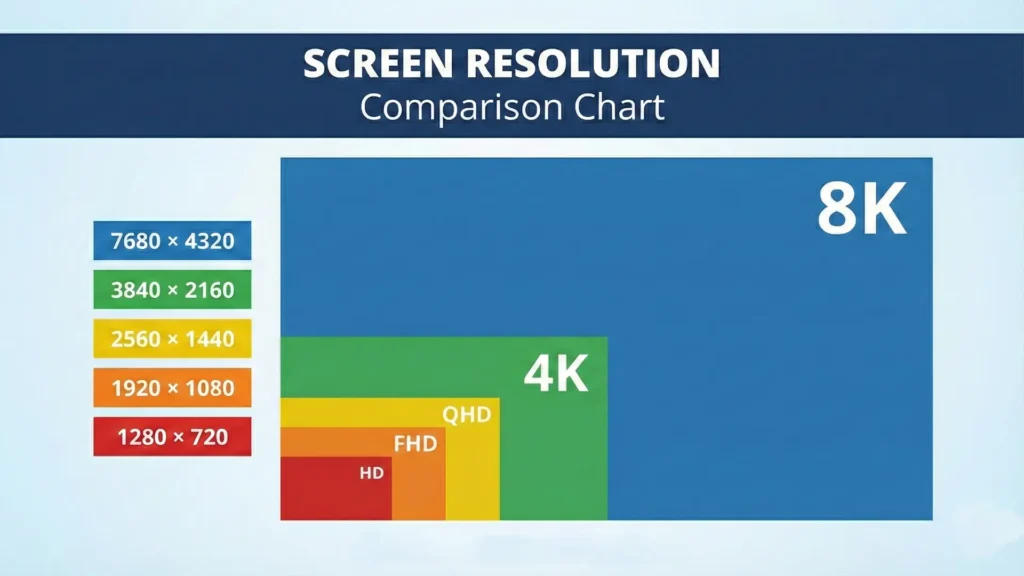
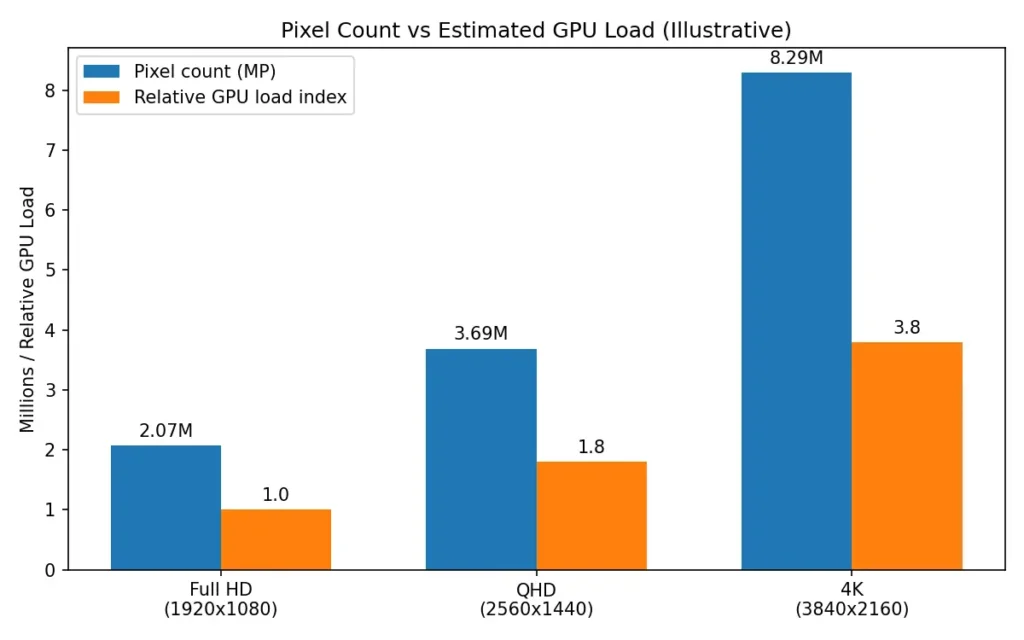
Before comparing QHD and 4K, it helps to remember where 1080p (Full HD) sits. Full HD is 1920×1080 pixels, or about 2 million pixels total. QHD increases that to roughly 3.7 million pixels, while 4K jumps to 8.3 million. That progression explains why 4K demands so much more GPU power than 1440p.
| Feature | QHD (2560×1440) | 4K (3840×2160) |
| Pixel count | ~3.7 million | ~8.3 million |
| Native label | 1440p, QHD, WQHD | 4K UHD (consumer) |
| Visual clarity | Noticeably sharper than 1080p; good detail | Exceptionally sharp; best detail and text clarity |
| Pixel density (example 27″) | High — good balance of PPI and performance | Very high — crisper at same size |
| Gaming performance | Easier to reach high FPS; high refresh common | Much heavier GPU load for same FPS |
| Hardware cost | Mid-range | Higher (especially high-refresh models) |
| Best use case | Competitive gaming, general productivity, value-focused upgrades | Professional creative work, large-screen media, ultimate image fidelity |
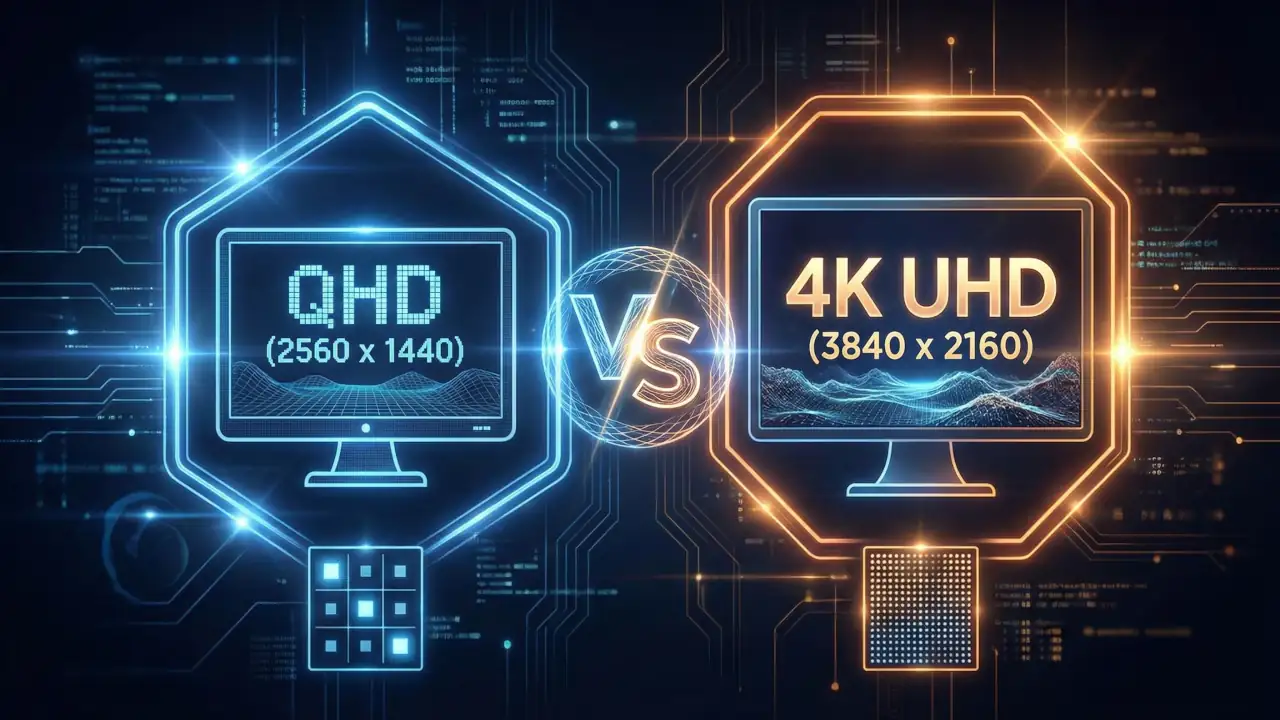
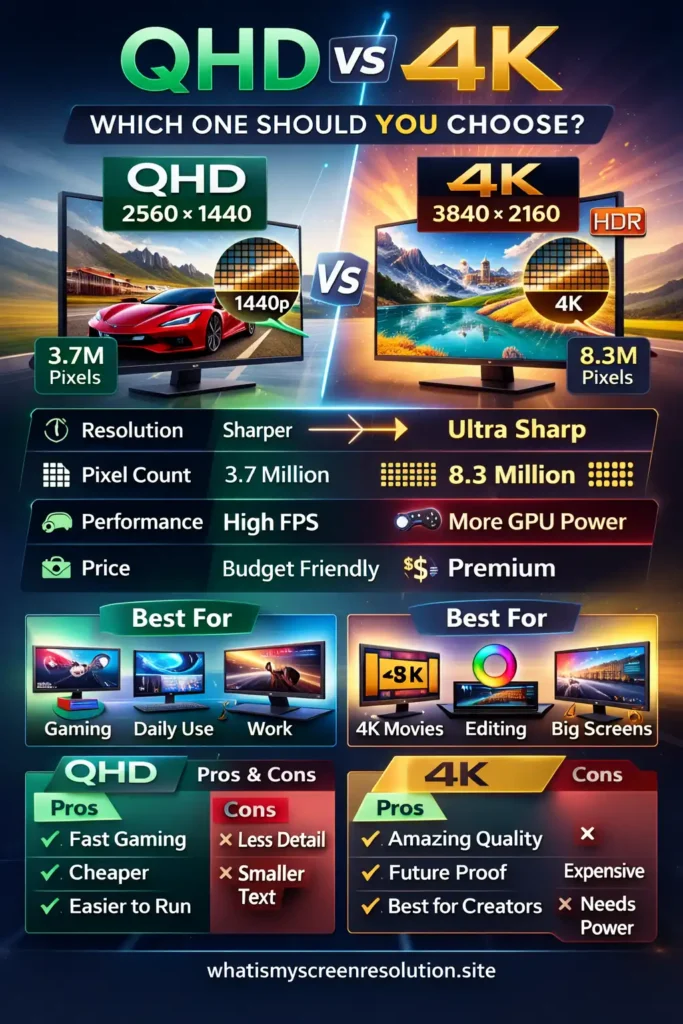
If you prefer a visual breakdown, here’s a quick side-by-side look at QHD vs 4K.
Pixel Density and Perceived Sharpness
Resolution is raw pixels, but how sharp an image looks depends on pixel density (pixels per inch, or PPI) and viewing distance. A 27-inch QHD panel and a 27-inch 4K panel show the same physical size but the 4K panel packs many more pixels into the same space, increasing PPI and perceived sharpness. For typical desk use, QHD at 27 inches already looks very good — the jump to 4K becomes less dramatic unless you’re a content pro or sit very close to the screen.
When I test monitors, I calculate pixel density using the PPI calculator I built on whatismyscreenresolution.site. I originally created the tool because I kept seeing people confuse resolution with sharpness — but PPI and viewing distance matter just as much. Running the numbers makes the differences much clearer than marketing specs alone.
For example:
• 27-inch QHD ≈ 109 PPI
• 27-inch 4K ≈ 163 PPI
• 32-inch QHD ≈ 92 PPI
• 32-inch 4K ≈ 138 PPI
That jump explains why 4K looks dramatically sharper at larger sizes, while 27-inch QHD still looks very good at a normal desk distance.
To better understand how resolution affects performance, take a look at this comparison of pixel count and GPU load.
Which Resolution Should You Choose?
Pick the resolution that fits how you use your computer, your budget, and how much hassle you want configuring hardware.
If you play competitive or fast-paced games and want very high frame rates, QHD is often the better choice. It gives a clear image upgrade over 1080p while letting you hit 120–240+ FPS on reasonably priced GPUs. Many gamers find QHD to be the “sweet spot” for 27-inch monitors. In my own testing — and after comparing GPU benchmarks while building my resolution guides — 1440p consistently gives modern mid-range GPUs enough headroom to push high refresh rates without relying heavily on upscaling.
If you edit video, do color-corrected photo work, or want the absolute best picture for films and single-player games — and you have the hardware budget — 4K is worth it. On large monitors and TVs (32 inches and up) the extra pixels are obvious and very satisfying. Also consider 4K if you plan to keep the display for many years; content is trending toward higher-resolution assets.
If you’re unsure, ask yourself:
If I had to recommend one resolution for most readers, I’d suggest 27-inch QHD for gaming and everyday productivity. It delivers excellent clarity without demanding extreme GPU power. I only recommend 4K if you truly need the extra detail for creative work or want the sharpest possible image on a large screen.
Practical Examples
Imagine a 27-inch monitor. At that size:
- QHD gives solid sharpness and makes text and UI look clean while allowing high refresh rates without a flagship GPU.
- 4K provides higher PPI and crisper images, but you’ll need a stronger GPU to run modern games at high settings and high FPS, or you’ll rely on upscaling tech to hit frame targets. Modern upscaling like DLSS and FSR can make 4K gaming more accessible, but they’re not a free substitute for raw GPU power.
For laptops: QHD screens are common in premium laptops because they offer a nice balance of battery life and image quality. 4K laptop panels exist but usually hit battery life and graphics harder.
Also Read: Should You Turn on HGiG Mode?
Take Away
QHD is the practical, cost-effective choice for most people — especially gamers who want great visuals and high refresh rates without buying a monster GPU. 4K is the premium choice: unmatched detail and excellent for creators and cinephiles, but it costs more in hardware and money. Think about how you actually use your screen, how long you keep tech, and whether you value FPS or pixel-perfect visuals more.